







 简体中文
简体中文 English
搜索结果建议
快速链接
FAQ
Q: My T8S keeps beeping. How to make the beeping sound stop?
Q: My T8S keeps beeping. How to make the beeping sound stop?
A: If T8S keeps beeping when connecting to the mobile phone APP, you need to press any one of the below trimmer buttons to confirm the connection. After pressing the trimmer button, the beeping sound stops and the connection succeeds.

If T8S beeps after the connection succeeds, you need to check whether alarm is caused by transmitter voltage alarm, model voltage alarm or RSSI alarm. You can set the value to be lower if the value is high.
Q: Why the parameters of T8S cannot be saved on mobile APP after modifying it?
Q: Why the parameters of T8S cannot be saved on mobile APP after modifying it?
A: After the parameters of T8S are modified on mobile APP, be sure to click "WRITE" on the APP. After hearing the "DiDi" prompt sound from T8S, the data is saved successfully.
Q: How to set PROG.MIX Function on T8S/T8FB?
Q: How to set PROG.MIX Function on T8S/T8FB?
A: Please follow this tutorial:
https://www.youtube.com/watch?v=qJsKnGO4xks
Q: How to distinguish whether it is the T8S BT version or the T8S OTG version?
Q: How to distinguish whether it is the T8S BT version or the T8S OTG version?
A:
1.T8S OTG version: Short press power button to power it on and the PASS mark on the back is not marked with a black pen for the OTG version;
2. T8S BT version with a short press to turn on: Short press power button to power it on and the PASS mark on the back is marked with a black pen;
3. T8S BT version with a long press to turn on(The latest version): Long press the power button to power it on (T8S of this version can be upgraded to the latest firmware, and the mobile APP can also be upgraded to the latest version. Signal and voltage telemetry are supported. And multiple sets of models can be saved in APP).
Q: How to upgrade T8S firmware?
Q: How to upgrade T8S firmware?
A: The firmware upgrade of T8S can only be done via computer.
Please click below link to check the tutorial video
https://www.youtube.com/watch?v=KZNNQ1KoLT8
All necessary files can be downloaded via
https://www.radiolink.com.cn/t8s_firmwares
Q: How to install Android or Apple mobile phone parameters setup APP for T8FB/T8S?
Q: How to install Android or Apple mobile phone parameters setup APP for T8FB/T8S?
A: Please follow the tutorial:
https://www.youtube.com/watch?v=4hVgI8mSr3o
Q: How to install parameters setup APP for T8FB/T8S on the computer?
Q: How to install parameters setup APP for T8FB/T8S on the computer?
A: Please follow the tutorial:
https://www.youtube.com/watch?v=SzS1kc6ShrE
Q: Can I switch the throttle from the right stick to the left stick?
Q: Can I switch the throttle from the right stick to the left stick?
A: Yes. You need to change the joystick mode. Here below is the tutorial on how to change the stick mode of T8S:
https://www.youtube.com/watch?v=b-97TUi3_Rw
Q: How to calibrate the joystick of T8S?
Q: How to calibrate the joystick of T8S?
A: Please follow the below tutorial:
https://www.youtube.com/watch?v=hp4g-NTMqMg
Q: How to bind receivers to T8FB/T8S?
Q: How to bind receivers to T8FB/T8S?
A: Please follow the tutorial:
https://www.youtube.com/watch?v=thRhOOp6ecs
Q: How to store, add, switch, delete models on T8FB/T8S by iPhone?
Q: How to store, add, switch, delete models on T8FB/T8S by iPhone?
A: Please follow the tutorial:
https://www.youtube.com/watch?v=1rbuXg8nEBo
Q: How to store, add, switch, delete models on T8FB/T8S by Android Phone?
Q: How to store, add, switch, delete models on T8FB/T8S by Android Phone?
A: Please follow the tutorial:
https://www.youtube.com/watch?v=Je8nZ21ZaKo
Q: How to set T8FB/T8S with A560/Byme-A?
Q: How to set T8FB/T8S with A560/Byme-A?
A: Please follow the tutorial:
https://www.youtube.com/watch?v=0QMsg0D9Yis
Q: How to bind R8EF with T8FB/T8S?
Q: How to bind R8EF with T8FB/T8S?
A: Please follow the tutorial:
https://www.youtube.com/watch?v=D2cwvloIMDM
Q: How to adjust the damping of the joysticks of T8FB/T8S?
Q: How to adjust the damping of the joysticks of T8FB/T8S?
A: Please follow this tutorial:
https://www.youtube.com/watch?v=yn2tnRJeeLA
Q: How to test RSSI with T8S transmitter and receivers?
Q: How to test RSSI with T8S transmitter and receivers?
A: Please follow this tutorial:
https://www.youtube.com/watch?v=U-exf2swPv0
Q: How to supply power to the receiver without using the ESC?
Q: How to supply power to the receiver without using the ESC?
A: Please follow this tutorial:
https://www.youtube.com/watch?v=nquuvM3hmtw
Q: How to replace the joystick and calibrate the joystick of T8S transmitter?
Q: How to replace the joystick and calibrate the joystick of T8S transmitter?
A: Please follow this tutorial:
https://www.youtube.com/watch?v=nFnvT9MZylU
Q: How to use the T8S to modify the gyro sensitivity through the knob switch?
Q: How to use the T8S to modify the gyro sensitivity through the knob switch?
A: Please follow this tutorial:
https://www.youtube.com/watch?v=VT4Ekv4coPI
Q: T8S cannot be powered on after updating the firmware. How to solve the problem?
Q: T8S cannot be powered on after updating the firmware. How to solve the problem?
A:
If T8S cannot be powered on after firmware update, the common reasons and solutions are as follows:
1. Wrong firmware is installed. There are different versions for T8S. Please download the matching firmware from RadioLink official website.
T8S BT firmware download link:
https://www.radiolink.com/t8s_firmwares
(There are 2 versions of TBS BT. One version can be powered on by long pressing the power button. The other version can be powered on by slightly touch the power button. Their firmware are different)
T8S OTG firmware download link:
https://www.radiolink.com/t8s_otg_firmwares
2. There is something wrong during the firmware installation process. Please strictly follow the T8S firmware update instructions on RadioLink official website to update the firmware.
T8S firmware update instructions:
https://www.radiolink.com/newsinfo/457946.html?templateId=145719
Note: When the green “PASS” appears, the firmware update is successful.

Please do not unplug the USB cable now. Please click “Disconnect” first. The green "Connected" turns to red "Disconnected" means the T8S is disconnected from the firmware update tool. Then you can unplug the USB cable from T8S. Turn on T8S, and connect it to the parameter setup APP to check the current firmware version.

Q:The Parameter Setting Software on computer is in Chinese. How to change it to English?
Q:The Parameter Setting Software on computer is in Chinese. How to change it to English?
A: For the Parameter Setting Software on computer, please click the below link to download it: https://www.radiolink.com/t8fb_bt_app
If it is Chinese web page, please click English on the upper right corner to change the Chinese web page to English. (Note: Do not use software to translate the Chinese web page to English.) Then you can download the Parameter Setting Software in English.

Q: How to do factory reset to T8FB/T8S?
Q: How to do factory reset to T8FB/T8S?
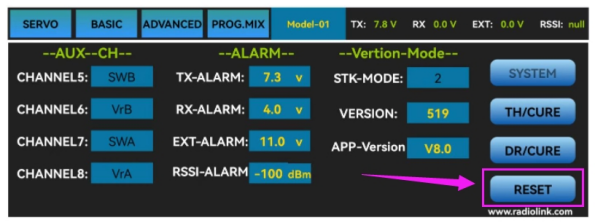
A: Download the Parameter Adjustment APP, and click RESET to reset all the parameters.
Q: Can I bind T8S to 2 receivers at the same time? For example, 1-4 channel for one receiver, 5-7 to the other receiver.
Q: Can I bind T8S to 2 receivers at the same time? For example, 1-4 channel for one receiver, 5-7 to the other receiver.
A: Yes. You can control the two receivers at the same time.
Q: Can T8FB/T8S set D/R for multiple channels at the same time?
Q: Can T8FB/T8S set D/R for multiple channels at the same time?
A: Yes. Channels 1 to 4 can be set for different servo travel range both individually and at the same time.
When setting one channel for different servo travel range, click “WRITE” after setting D/R value for the corresponding channel. When setting 4 channels for different servo travel range at the same time, click “WRITE” after setting D/R value for each channel. For example: after setting D/R value of channel 1, click “WRITE” to save the settings, and then switch the channel to “CH2”. Set D/R value of channel 2, and then click “WRITE” to save the settings. Repeat this steps for channel 3 and channel 4.
Q: Why I can't use T8S to connect with app?
Q: Why I can't use T8S to connect with app?
A: If the transmitter is powered on already and have clicked the "CONNECT" on the APP, but the APP cannot find the transmitter, please check:
(1) if the "Location permission" of your mobile have turned on
(2) turn on the location of the APP by these steps:
① choose "Notifications" in "Settings"
② click "T8S&T8FB" in "Notifications" and then click "
③ choose "Permissions" in APP info, and then click "Location" in "T8S&T8FB" permissions
④ choose "Allow only while in use", if the APP is default "Allow only while in use", please change to "Deny" first and then change back to "Allow only while in use"
After the steps above, if still can't connect to the APP, please download the version V603.
https://www.radiolink.com.cn/t8s_apps
Q: Why the D sounds don't stop even any of the trimmer buttons has been pressed when connect T8S(BT) to mobile?
Q: Why the D sounds don't stop even any of the trimmer buttons has been pressed when connect T8S(BT) to mobile?
A: It may possibly take several seconds to connect for the first time. Please be patient and wait for a while.
Q: Why the connection fails when walk away? Even the connection between T8S(BT) and mobile has been done successfully.
Q: Why the connection fails when walk away? Even the connection between T8S(BT) and mobile has been done successfully.
A: The power of the Bluetooth module in T8S(BT) is not that high and it will disconnect automatically when the distance is longer than 5 meters or if there's the obstacle. Therefore, please keep T8S(BT) close to the mobile when setting parameters with the APP.
Q: Since there's no simulator port found on T8S, can we enjoy simulator fun with T8S?
Q: Since there's no simulator port found on T8S, can we enjoy simulator fun with T8S?
A: Yes. We can enjoy simulator fun on either computer or mobile by connecting T8S with a wireless simulator.
Note The signal output of receiver should be PPM when connecting to the wireless simulator.
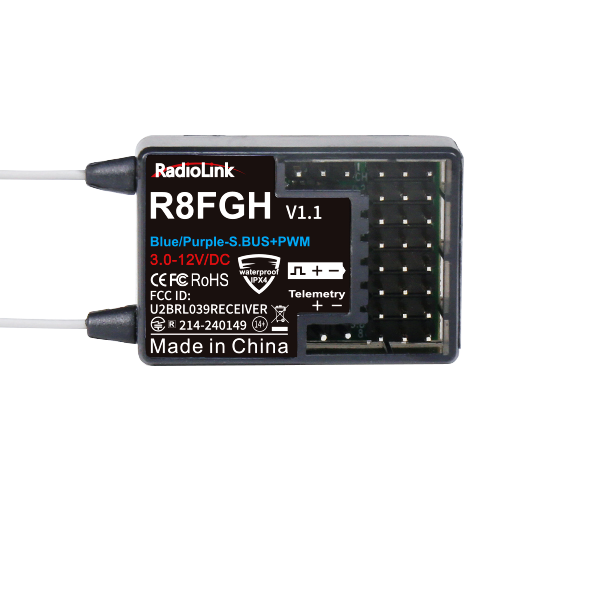
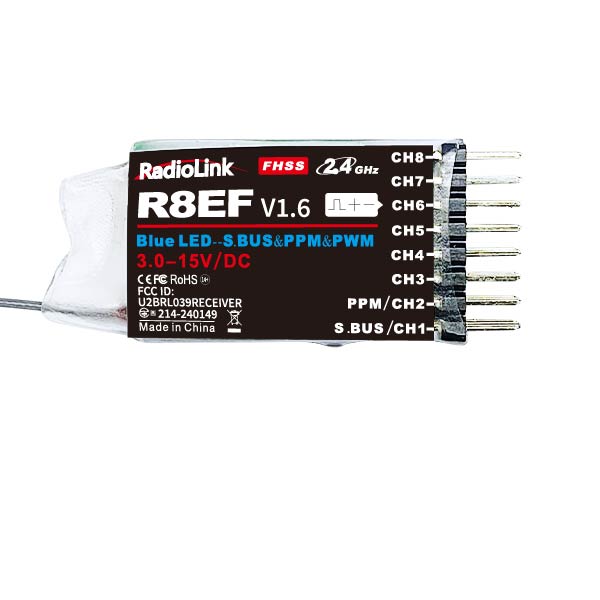
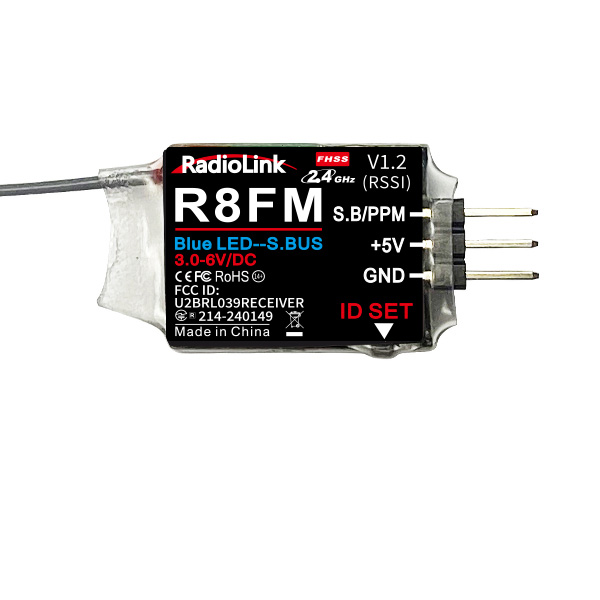
The indicator on R8FM is RED while that of R8EF is BLUE/PURPLE, meaning PPM signal output. (R8FM and R8EF are the two most common used receivers to T8S). Then connect the wireless simulator to the corresponding PPM channel of the receiver, which is marked on the pasted tag of receiver.
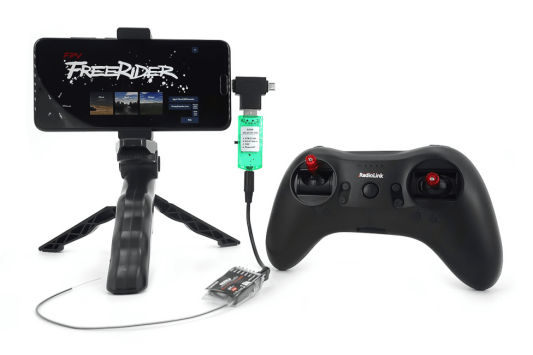
Here is the tutorial to show how to play simulator with T8S. You need a dongle to connect T8FB to the computer.
https://www.youtube.com/watch?v=PIQVsVA6cfk
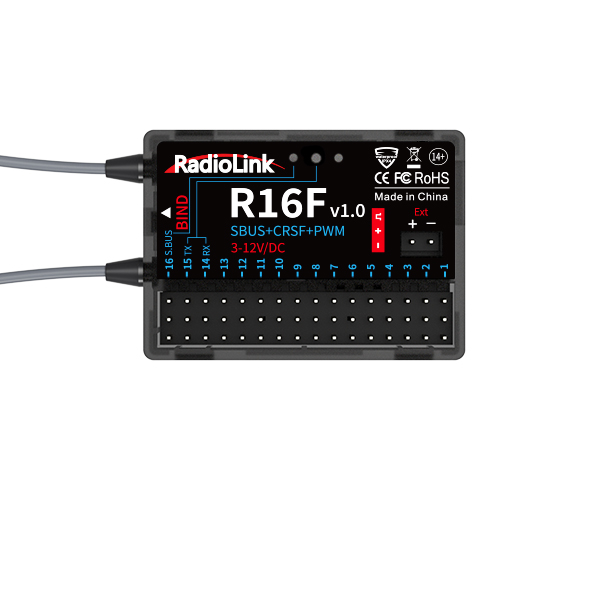
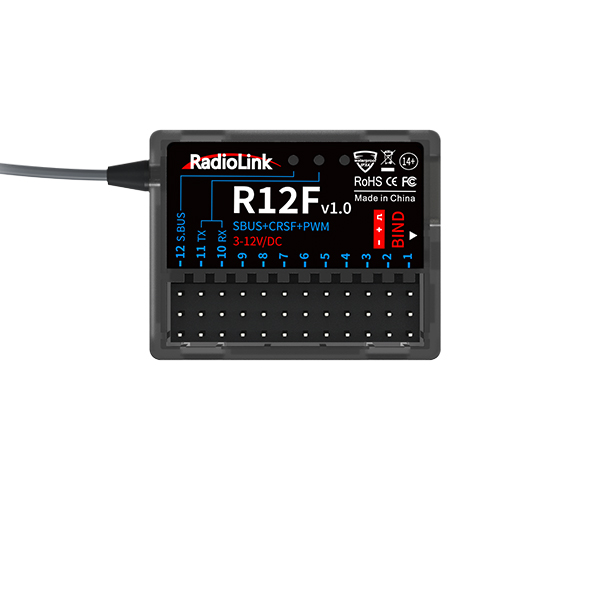
If you don’t have a dongle, you can use R16F/R12F receiver which supports built-in simulator function. That is to say, you only need a Type-C cable to use the simulator function. Here is a related tutorial:
https://www.youtube.com/watch?v=1Gh5ZhDTZ5o
Q: Can T8S set D/R for multiple channels at the same time?
Q: Can T8S set D/R for multiple channels at the same time?
A: Yes. Channels 1 to 4 can be set for different servo travel range both individually and at the same time.
When setting one channel for different servo travel range, click “WRITE” after setting D/R value for the corresponding channel. When setting 4 channels for different servo travel range at the same time, click “WRITE” after setting D/R value for each channel. For example: after setting D/R value of channel 1, click “WRITE” to save the settings, and then switch the channel to “CH2”. Set D/R value of channel 2, and then click “WRITE” to save the settings. Repeat this step for channel 3 and channel 4.
Q: How to set the throttle cut function on T8S?
Q: How to set the throttle cut function on T8S?
A: Set PROG.MIX in Parameter Setup APP as follows:
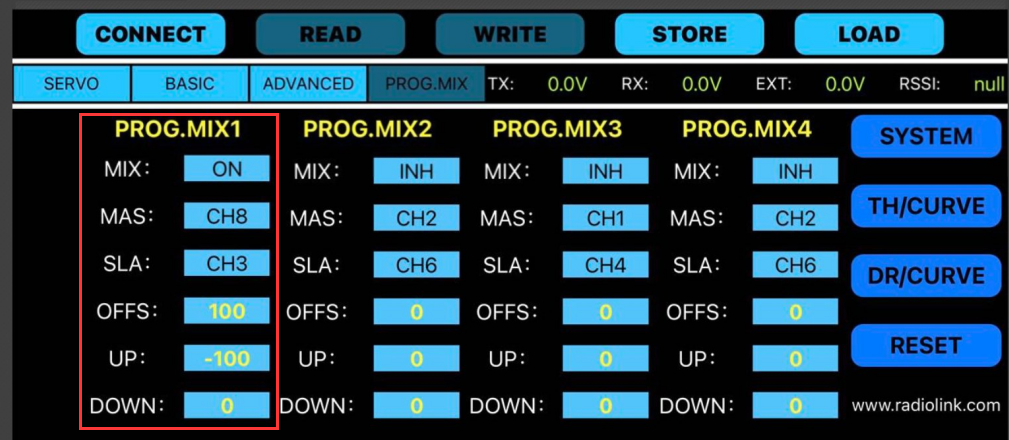
The switches of the auxiliary channels are as follows:

Q: Can I set the delta wing mixing function on T8S?
Q: Can I set the delta wing mixing function on T8S?
A: Yes. Set ELEVON in the Parameter Setup APP of T8S.
“Elevator mix” is also known as “delta wing mix”. It is often used for delta-wing aircraft. Two servos can control two servos surfaces on the left and right sides of the aircraft separately, and operate the aileron function and elevator function.
When “MIX” is set from “INH” to “ON”, the “AILE” and “ELEV” function is turned on. When this function is turned on, then both CH 1 and CH2 will respond, and the servo travel range can be adjusted individually.
1. AILE 1 and ELEV 2 correspond to the response rate of channel 1 when performing aileron operation and elevator operation.
2. AILE 2 and ELEV 1 correspond to the response rate of channel 2 when performing aileron operation and elevator operation.
The specific value is the amount of servo travel range when the corresponding channel performs the aileron or elevator operation. Positive and negative values represent different directions of movement.

Note: Do not set ELEVON when the aircraft is equipped with a flight controller, because the mixing in the transmitter will conflict with the mixing in the flight controller. Please refer to the manual of the to flight controller view the setting method.
Q: Can RadioLink transmitter work well with multiple transmitters using at the same time?
Q: Can RadioLink transmitter work well with multiple transmitters using at the same time?
A: Yes. The Frequencies Band of RadioLink transmitters are 2.4GHz ISM band, with a bandwidth of 83M. Up to 50 transmitters can be used at the same time.
Q: Why there's no D sound after connecting T8S(BT) with the parameter setup APP and selecting RadioLink device to connect?
Q: Why there's no D sound after connecting T8S(BT) with the parameter setup APP and selecting RadioLink device to connect?
A: Normally T8S(BT) will have continuous D sounds when receiving a signal from the mobile, then press any of the trimmer buttons to stop the sounds meaning the connection between T8S(BT) and APP is done with success. But it may fail when there's an APP running already backstage. Close all running parameter setup APPs and reconnect, the problem will be solved.
Click the below link to check the tutorial video about how to connect T8S(BT) to mobile
Q: Is it possible to block the trim buttons on T8S BT?
Q: Is it possible to block the trim buttons on T8S BT?
A: Yes. You can block the trim buttons on T8S BT by installing the firmware in which the trim function is turned off. You can download the firmware for turning off the trim function of T8S BT on RadioLink official website: https://www.radiolink.com.cn/t8s_firmwares

Q: How to turn on/off the transmit mode of T8FB/T8S?
Q: How to turn on/off the transmit mode of T8FB/T8S?
A: The transmit mode of T8S is on by default and currently can't be turned off.
Q: Do you have a list of models that will bind to the Radiolink T8S?
Q: Do you have a list of models that will bind to the Radiolink T8S?
A: Sorry, we don't have a list, cause there is a tremendous amount. T8S transmitter can work with most 2.4GHz models. The come-with receiver R8EF supports SBUS/PWM/PPM signal, could operate with most Racing drone, RC plane, fixed-wing, multirotor, RC car, RC boat, RC robot in the market. If you can't make sure could contact us and we will figure out can it works well with T8S or not.
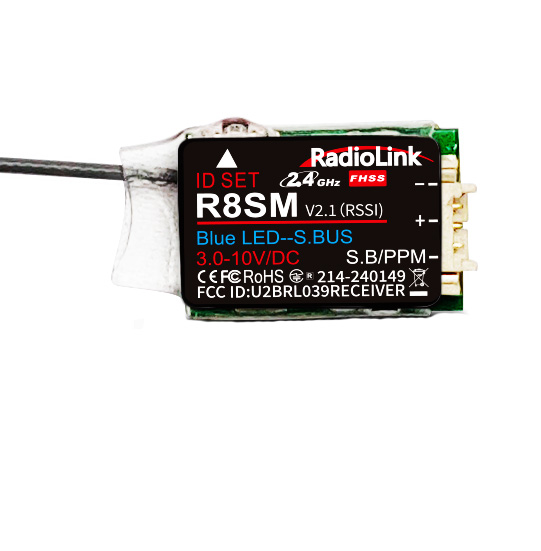
Q: How to output RSSI value from receiver R8SM/R8FM to FPV when connect to Betaflight F4/F7?
Q: How to output RSSI value from receiver R8SM/R8FM to FPV when connect to Betaflight F4/F7?
A: Click the website to check the setting steps: https://www.radiolink.com/newsinfo/504919.html
Q: How to output RSSI value from receiver R8SM/R8FM to FPV when connect to the Mini Pix/TURBO PiX/PIXHAWK?
Q: How to output RSSI value from receiver R8SM/R8FM to FPV when connect to the Mini Pix/TURBO PiX/PIXHAWK?
A: Click the website to check the setting steps: https://www.radiolink.com/newsinfo/504912.html
Q: What mobiles are compatible with the T8S parameter setup APP?
Q: What mobiles are compatible with the T8S parameter setup APP?
A: The T8S parameter setup APP is compatible with
① Android mobiles or tablets, the APP can download here: https://www.radiolink.com/t8s_apps
② Mobile Phone APP(for iOS)(New Version T8S(BT) only): Search T8S or Radiolink in Apple store and download.
Q: What if the servo range exceeds the red line when doing transmitter calibration in the Mission Planner of the flight controller?
Q: What if the servo range exceeds the red line when doing transmitter calibration in the Mission Planner of the flight controller?
A: The default servo range of T8S is 96. If the servo range exceeds the red line when calibrating in RadioLink Mission Planner of flight controller (Mini Pix &Turbo Pix), connect T8S to the parameter setup APP or software and click BASIC MENU and slightly decrease the servo range value.
Q: Why the servo range jitters when the APP is opened?
Q: Why the servo range jitters when the APP is opened?
A: When there are multiple parameter setup apps running backstage, extra data will be read as the servo range displays are not encrypted. Thus, turn off all the running apps, and reconnect T8S to mobile with the USB cable and OTG cable. Click ALLOW to open the APP when the notice pops out asking for open permission.
Q: Does T8S support head tracking function?
Q: Does T8S support head tracking function?
A: NO.
Q: Does T8S have the function of working as Trainer/Primary transmitter?
Q: Does T8S have the function of working as Trainer/Primary transmitter?
A: No. T8S can only work as Trainee/Secondary transmitter.
Q: Why do users encounter various problems when reading SBUS signals?
Q: Why do users encounter various problems when reading SBUS signals?
A:
1. When the data read by the user differs from the reference data we provide, please check whether the EPA setting of each channel in the transmitter is the same. If the EPA setting for each channel is different, the read signal range will be different.
2. If the SBUS data cannot be read, please check whether the devices used are working properly and whether there is any problem with the connecting cable.
3. Our products support standard SBUS signals compatible with various flight controllers. Please refer to the chart below for detailed information.
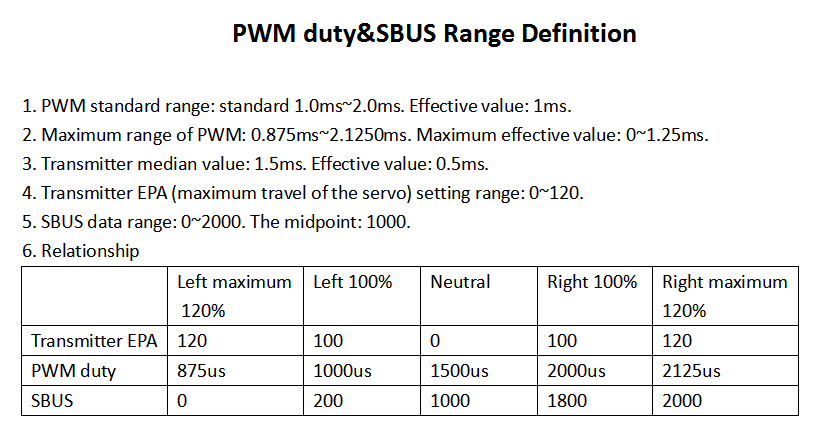





 简体中文
简体中文- English