
Packing List
Name | Details | PNP Version | RTF Version |
Fuselage | LDZ-A40 Drone | 1 | 1 |
Transmitter | RadioLink T12D | 1 | |
Receiver | RadioLink R16SM | 1 | |
Flight Controller | RadioLink F405 | 1 | 1 |
ESC | RadioLink 80A 4-in-1 ESC | 1 | 1 |
Motor | SZ-SPEED Brushless Motor | 4 | 4 |
Propeller | Gemfan 5-inch 51466 | 4 | 4 |
Battery | Gensace 6S XT60 Battery | 1 | 1 |
HY 2S 1700mAh Battery | 1 | ||
Charger | HOTA T6 charger | 1 | 1 |
RadioLink CM210 Charger (with a cable) | 1 | ||
Cable | Type-C cable | 1 | 1 |
Hex Wrench | 2.0mm Hex Wrench | 1 | 1 |
Socket Wrench | screwdriver socket wrench | 1 | 1 |
Package Box | Package Box | 1 | 1 |
Parameters
Takeoff Weight | 984.8g |
Dimension | 402mm |
Material | Carbon Fiber (Frame), Plastic (Ball Shells, Battery Case) |
Signal input supported | CRSF、ELRS、SBUS |
Flight Modes | Alt-Hold mode , Stabilize mode, Turtle mode, Air mode |
Flight Time | 6 Minutes |
Flight Distance | 3000 Meters |
Low Battery Alarm | 22.0V by default. When the battery voltage is lower than 22.0V, the T12D will emit a beeping alarm. |
Theory of Flight
1.1Transmitter
The two joysticks of T12D correspond to the four basic channels respectively.
Note: All of the following are based onT12D Mode 2 (Throttle on the left stick).
Left joystick
Make the LDZ-A40 rise or descend by toggling the left stick (THROTTLE) vertically upward or downward and turn clockwise or anticlockwise by toggling the left stick (YAW) to the left or right.
Right joystick
Make the LDZ-A40 fly forward or backward by toggling the right stick (PITCH) vertically upward or downward and to left or right by toggling the right stick (ROLL) to the left or right.
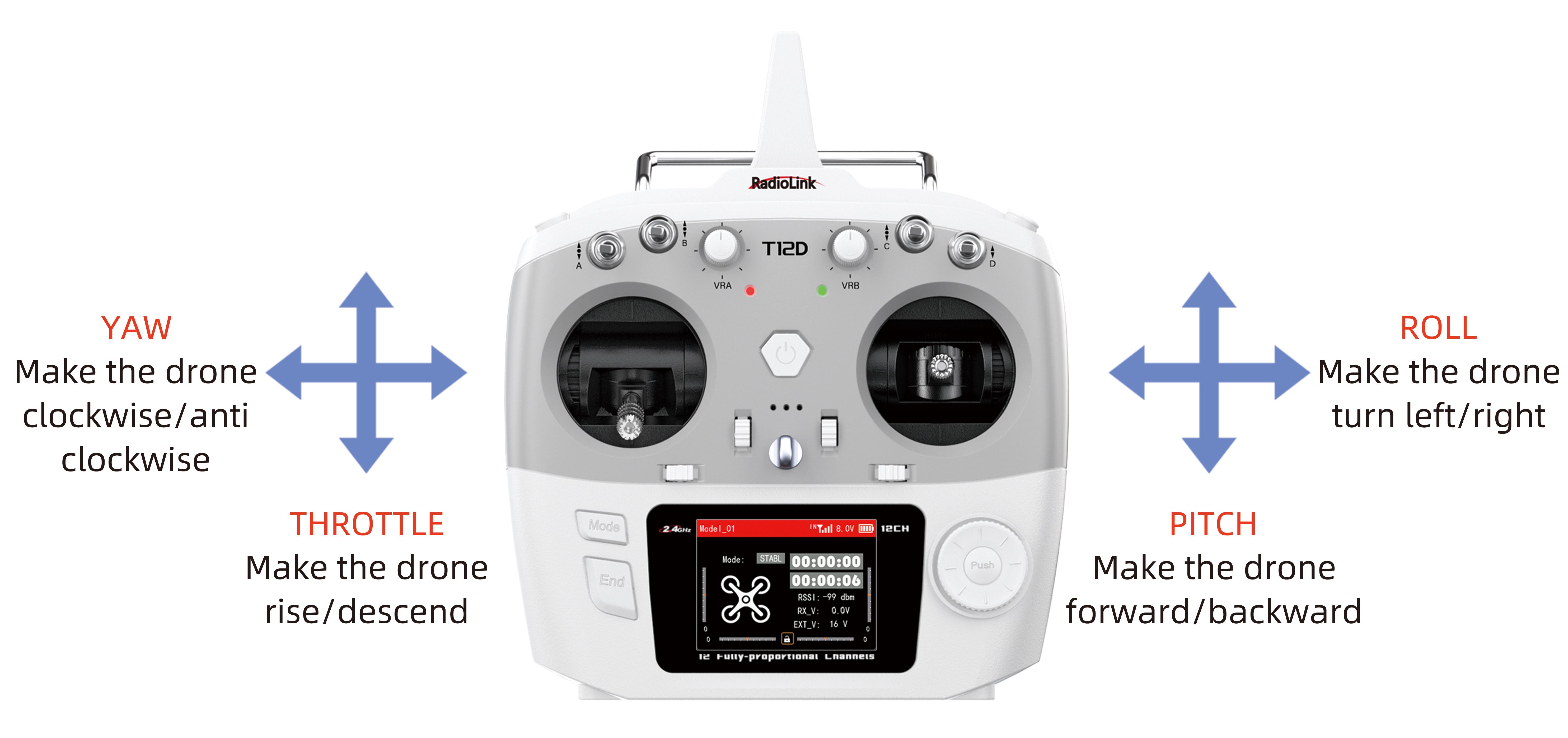
MODE 2
1.2 Joysticks & Flight Movements
A. Throttle: Rise/ Descend/Hover(Note: Take T12D mode 2 as an example)

Toggle the throttle stick (on the left) vertically upward and LDZ-A40 will rise and toggle the throttle vertically downward, then LDZ-A40 descends.
B. Yaw: Clockwise/Anticlockwise
Toggle the yaw stick (on the left) to the left and LDZ-A40 will turn anticlockwise and toggle the yaw stick to the right, then LDZ-A40 turns clockwise.

Yaw stick to the left, LDZ-A40 turns anticlockwise
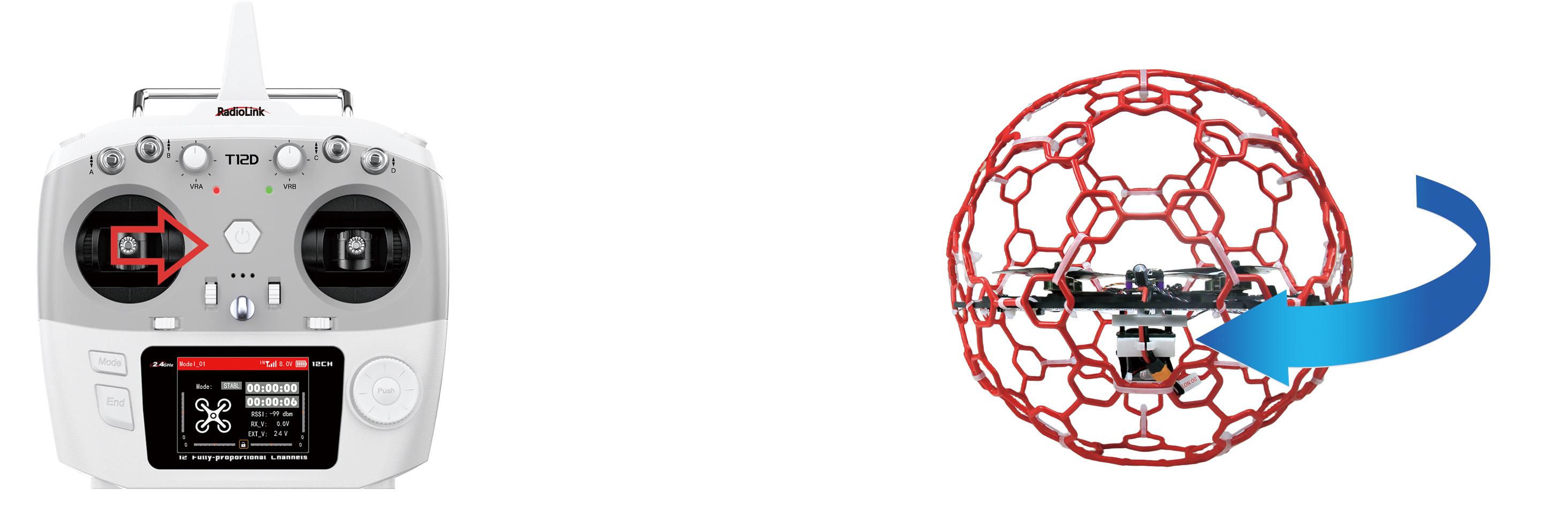
Yaw stick to the right, LDZ-A40 turns clockwise
C. Pitch: Forward/Backward
Toggle the pitch stick (on the right) vertically upward and LDZ-A40 will fly forward and toggle the pitch stick vertically downward, then LDZ-A40 flies backwards.
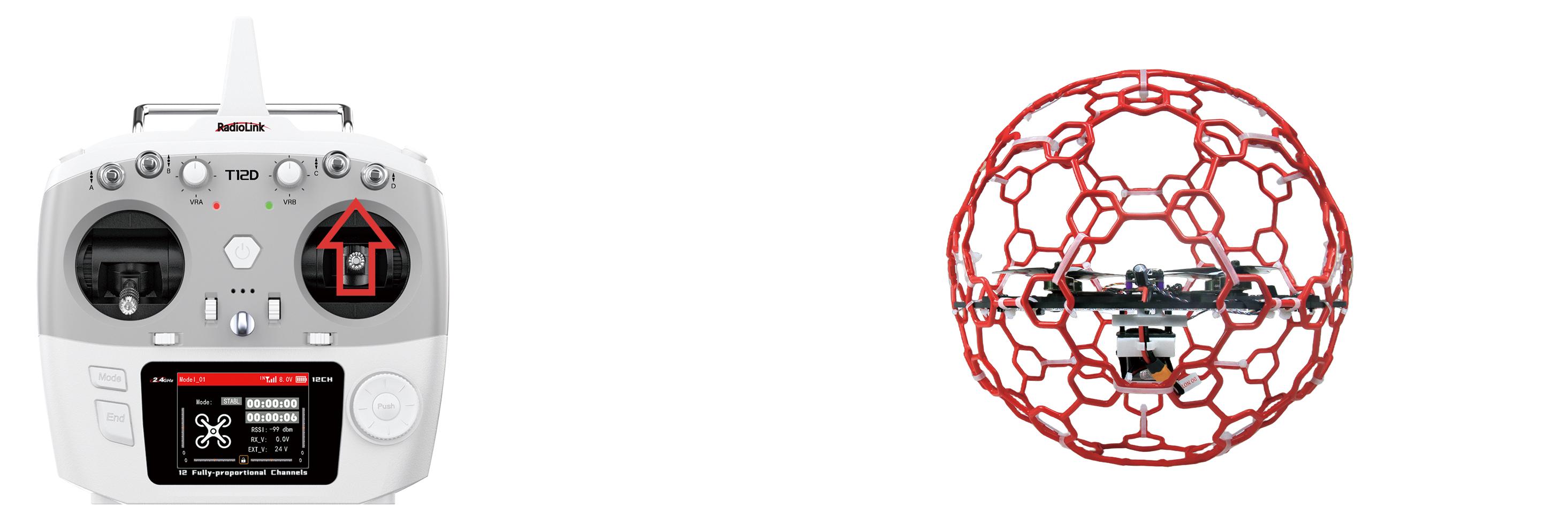
Pitch stick upward, LDZ-A40 moves forward
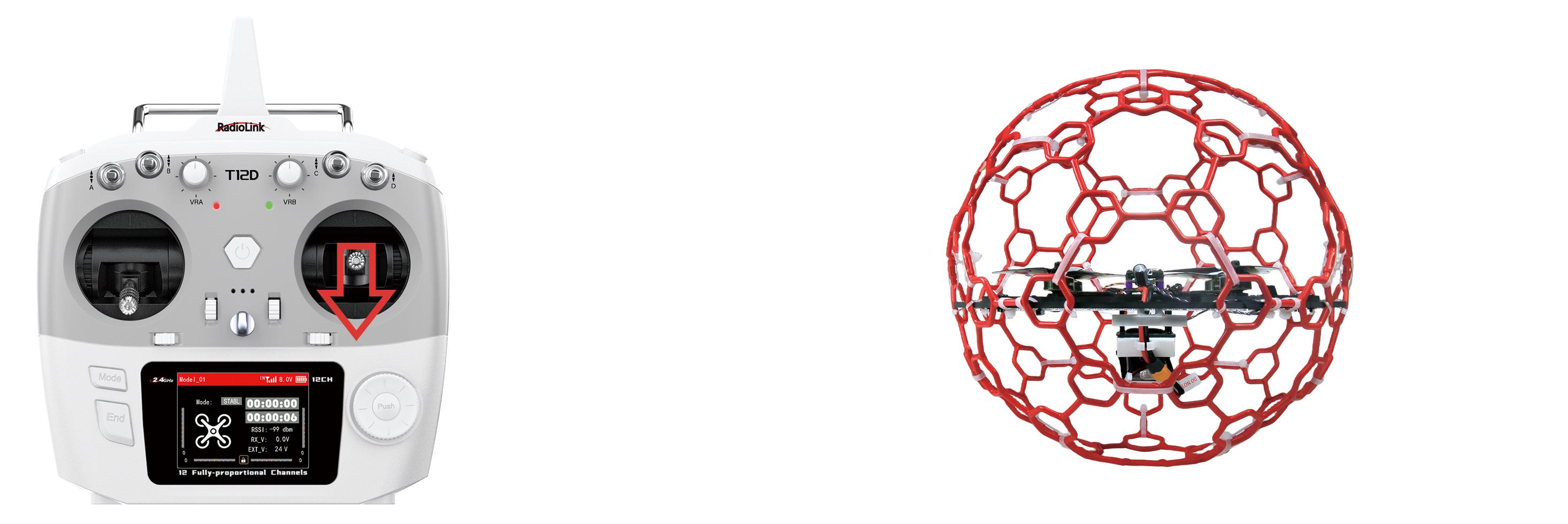
Pitch stick downward, LDZ-A40 moves backward
D. Roll: Right/Left
Toggle the roll stick (on the right) to the left and LDZ-A40 will fly to the left side and toggle the roll stick to the right, then LDZ-A40 will fly to the right side.
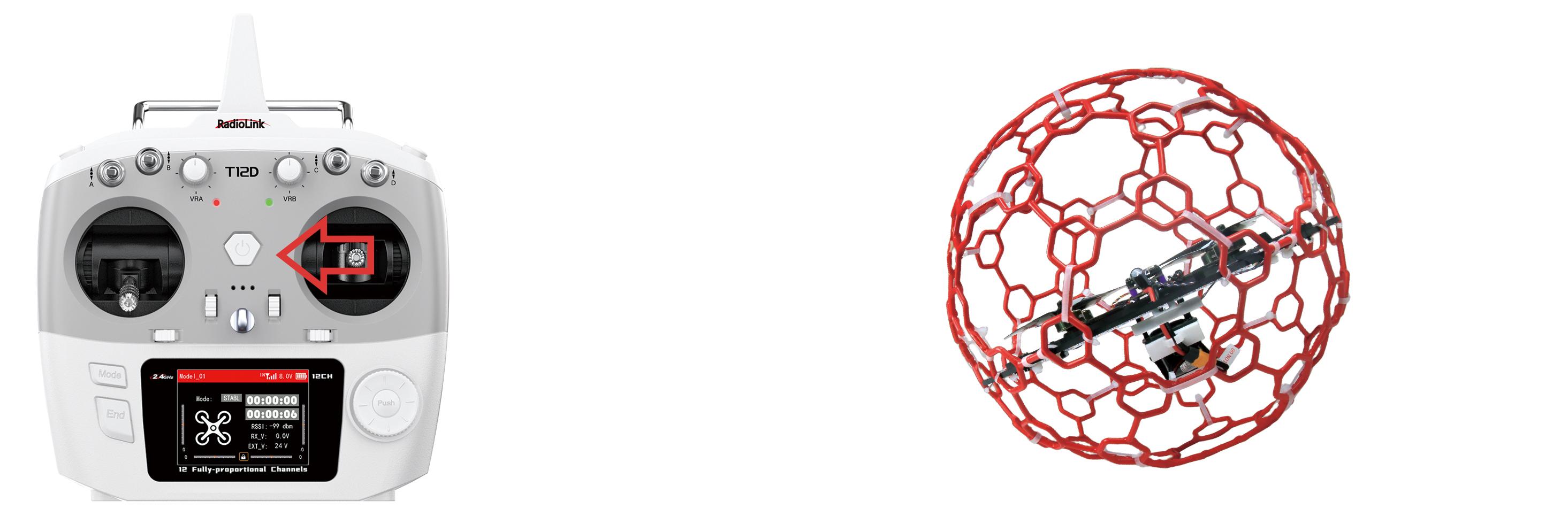
Roll stick to left, LDZ-A40 fly to the left side
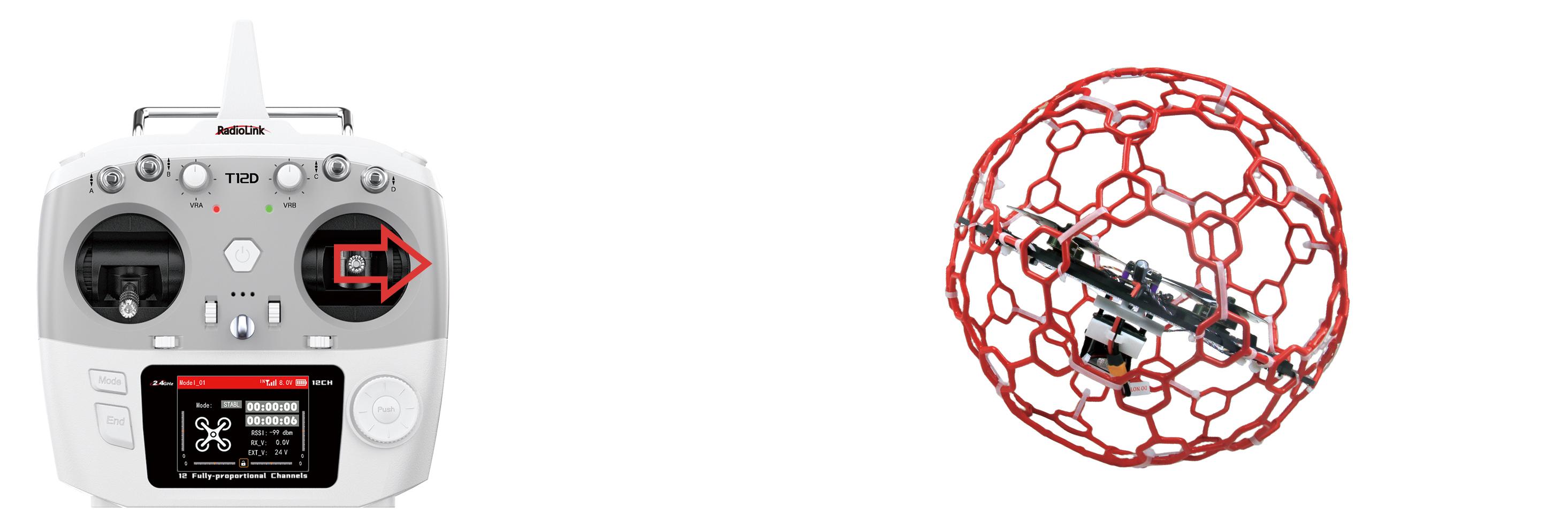
Roll stick to right, LDZ-A40 fly to the right side
Flight Controller Channel Introduction
Channel | Introduction |
CH1 | Roll |
CH2 | Pitch |
CH3 | Throttle |
CH4 | Yaw |
CH5 | Disarm/Arm |
CH6 | Air mode |
CH7 | Alt-Hold mode, Stabilize mode |
CH8 | Turtle mode |
Transmitter Switch Introduction
LDZ-A40 comes with RadioLink T12D transmitter. Here is the introduction of the switches of T12D:
SWA: Push it up to disarm the drone. Push it down to arm the drone. NULL in the middle. Corresponding to CH5 of the flight controller.
SWB: Push it up to turn off air mode. Push it down to turn on air mode. NULL in the middle. Corresponding to CH6 of the flight controller.
SWC: Push it up or keep it in the middle to select Alt-Hold mode. Push it down to select stabilize mode. Corresponding to CH7 of the flight controller.
SWD: Push it up to turn off turtle mode. Push it down to turn on turtle mode. Corresponding to CH8 of the flight controller.
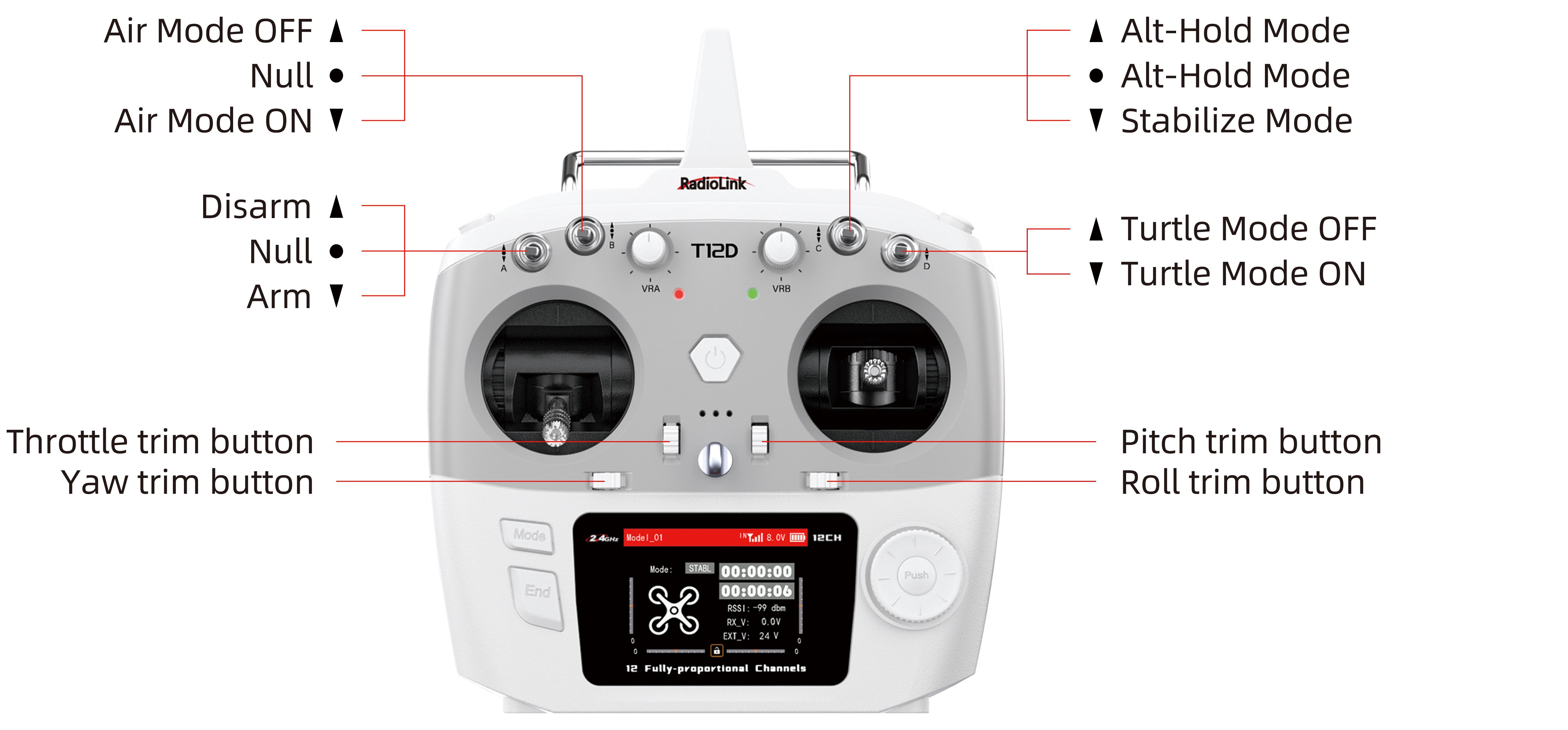
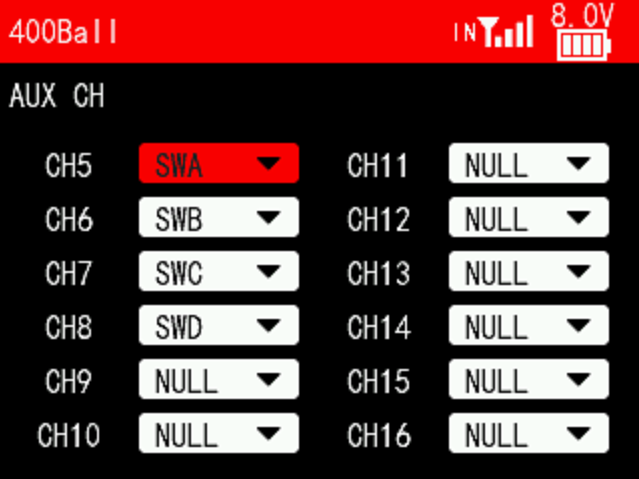
The corresponding setting of the AUX CH menu on T12D is shown on the right:
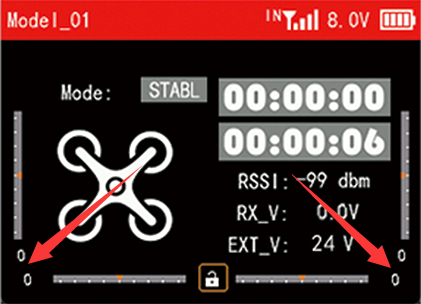
When the trim values on the screen of T12D are not 0, please adjust the trim values to 0 by using the four trim buttons (as shown above). For more details, please refer to the detailed manual of T12D: https://www.radiolink.com.cn/t12d_manual
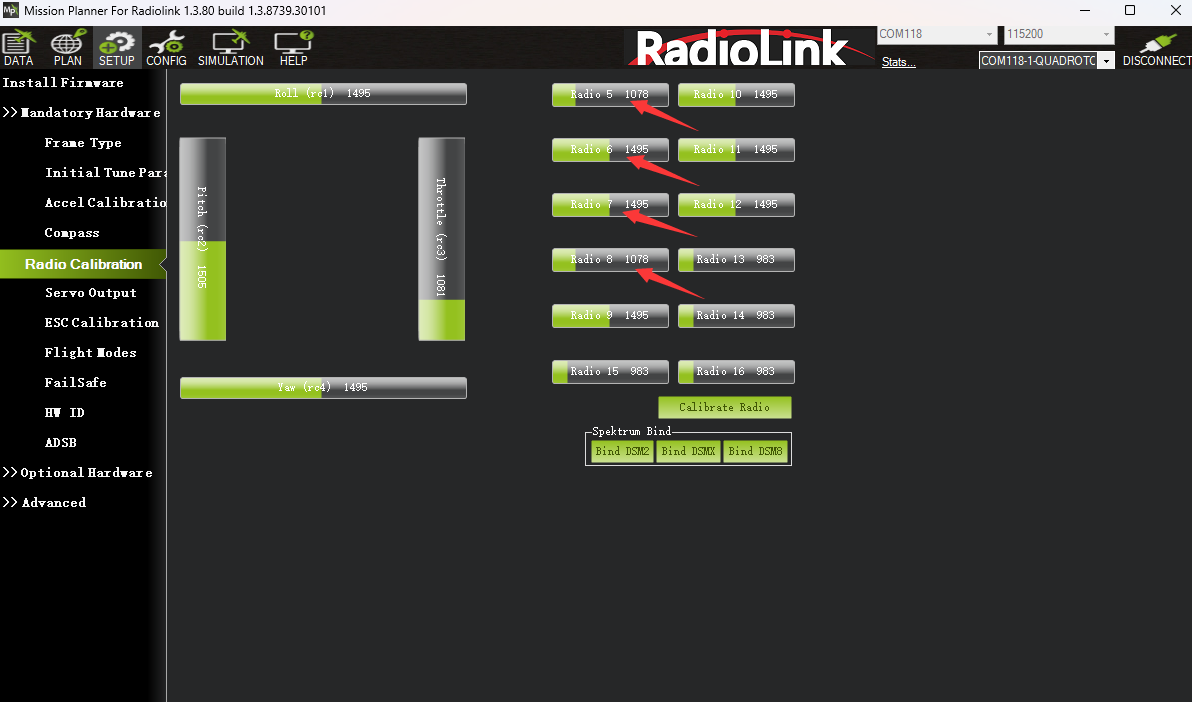
Note: LDZ-A40 PNP version does not come with transmitter or transmitter. Users need to set the transmitter switch of channel 5 to channel 8 according to the below channel values and servo output of the transmitter:
CH5 | CH6 | CH7 | CH8 | |
Arm | (servo output +100% or 100%) | |||
Alt-Hold mode | (servo output -100% or 50%) | |||
Stabilize mode | (servo output +100% or 100%) | |||
Turtle mode | (servo output +100% or 100%) | |||
Air mode | (servo output +100% or 100%) |
Users can view the channel value in Mission Planner-- Radio Calibration interface (as shown above). Toggle the corresponding transmitter switch. If the corresponding channel value is within the range in the table above, you can switch to the corresponding mode or arm the drone.
Arm and Disarm LDZ-A40
Arm LDZ-A40
Power on LDZ-A40 with the 6S battery. After powering it up, place LDZ-A40 on the ground for self-checking. LDZ-A40 needs to remain stationary during the self-checking process. The motor will emit a piece of music during the self-checking. When you hear two short music sounds, the self-checking is complete.
Make sure the throttle is at the lowest position. Push SWA down to the lowest position, and the propellers start to rotate at idle speed indicates arm successful. For security reasons, LDZ-A40 will be disarmed automatically if there is not any operation of the throttle for 5 seconds. Please arm LDZ-A40 again when the flight is ready.
Note: The maximum arming angle of LDZ-A40 is 90 degrees. When the drone tilts more than 90 degrees, please return the body to the normal position by using the turtle mode or make the drone tilt angle less than 90 degrees before arming. And the throttle stick must be in the lowest position when arming.
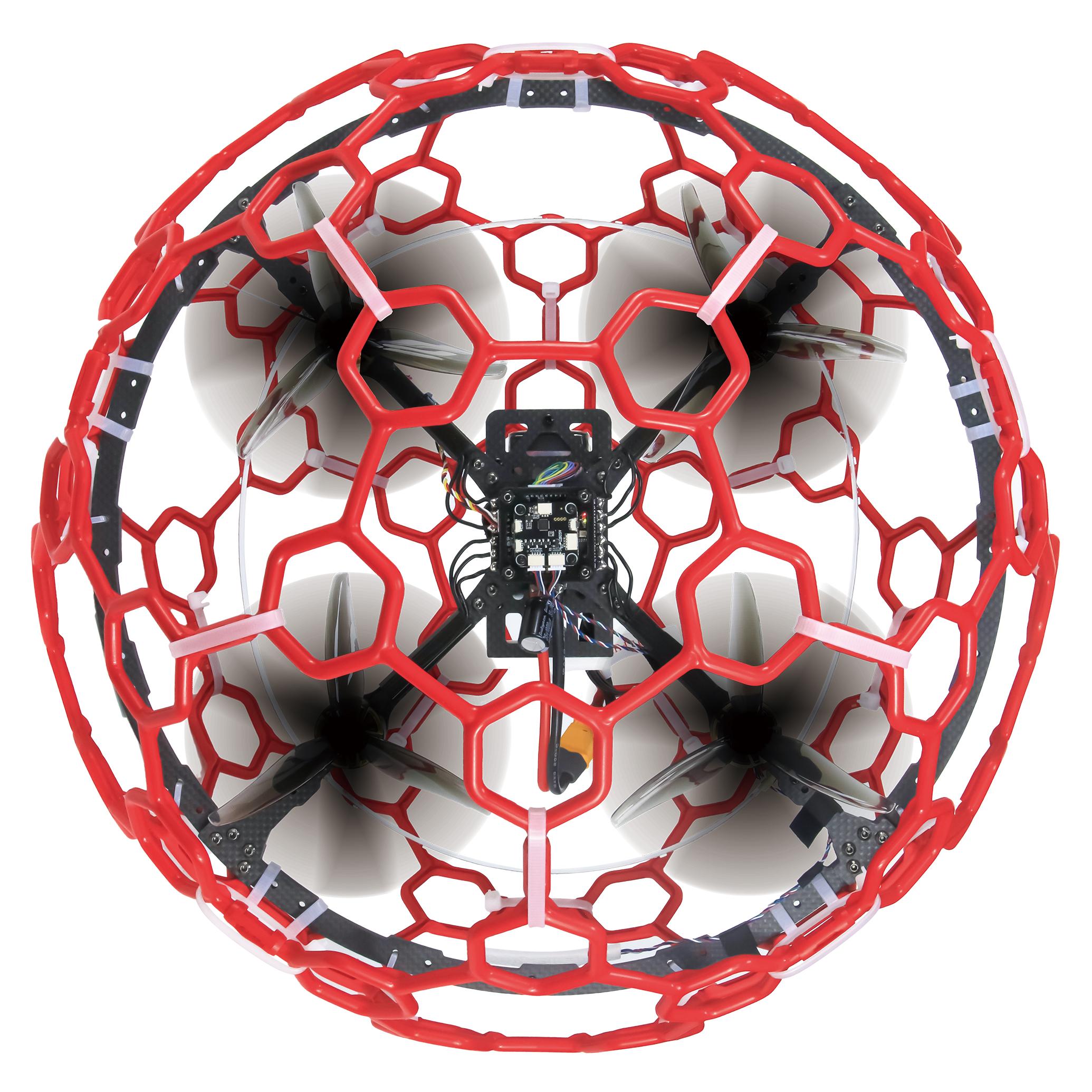
LDZ-A40 propellers start to rotate at idle speed indicates arm successful
Disarm LDZ-A40
When the flight is finished, push up SWA to disarm LDZ-A40. LDZ-A40 propellers stop rotating indicates disarm successful.
Note: During the flight, the motors/propellers will stop immediately if SWA is pushed up. Please pay attention to avoid hitting people and damaging valuables.
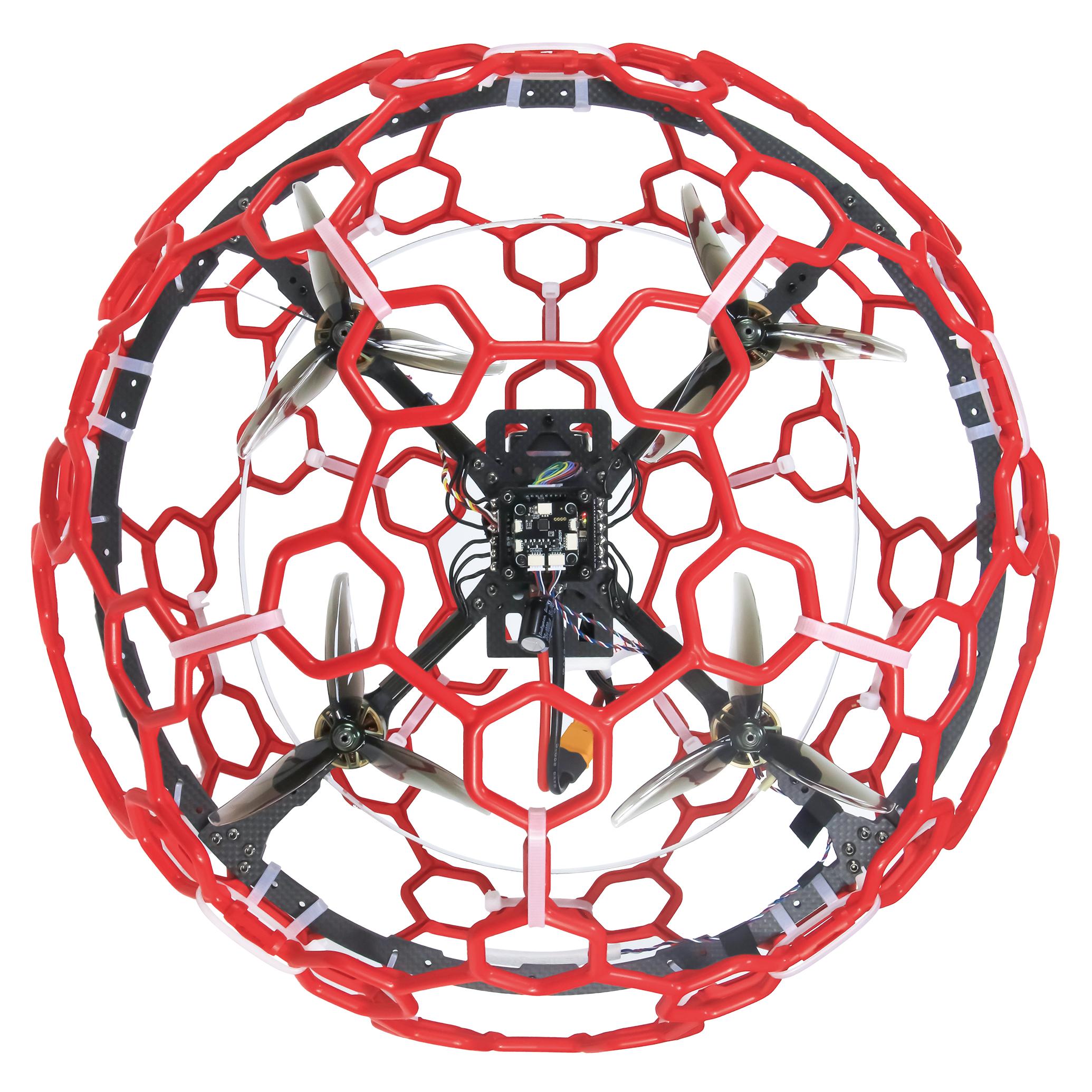
LDZ-A40 propellers stop rotating indicates disarm successful
Four Flight Modes
5.1Alt-Hold Mode
After arming LDZ-A40, push throttle lightly to start the motor. If the throttle is pushed above the midpoint, the drone will climb steadily upwards. If it is pushed below the midpoint, it will descend. To take off from the ground, push the throttle stick above the midpoint. When the drone climbs or descends to a suitable height, push the throttle stick to the midpoint, and the drone will maintain its current position and altitude.
5.2Stabilize mode
The basic operation such as Rise/Descend/Forward/Backward/left/right of Stabilize mode is the same as Alt-Hold mode. In Stabilize mode, the throttle corresponds to the drone power. The more the throttle stick is pushed up, the greater the climbing power. The flight control no longer assists in altitude setting. If you want the drone to maintain the same altitude, the pilot needs to practice for a period of time to achieve it through flight operations.
5.3Turtle mode
When the drone is hit or flips over at any angle due to operation error, you can enable the turtle mode to rotate one side of the motor to flip the fuselage back to normal.
Put throttle to the lowest position. Then push SWD down to the lowest position to turn on the turtle mode. After turtle mode is turned on, push up the throttle stick a little bit. Move the roll or pitch stick to flip the drone. After the drone flips back to the level,put down the throttle stick to the lowest position. Push SWD up to turn off the turtle mode. Then arm LDZ-A40 and take off.
Note: When turning on/off the turtle mode, the throttle stick must be at the lowest point.Otherwise you cannot turn on/off the turtle mode.
5.4Air mode
Air mode can help the drone maintain its attitude when the throttle is zero in the stabilize mode, and avoid the aircraft rolling over after the pitch or roll stick is operated when the throttle is zero. After turning on the air mode, the aircraft will bounce when landing. If you want a smoother landing, please turn off the air mode in advance when preparing to land.
Note: The air mode only takes effect in the stabilize mode. The air mode switch does not work in other modes.
LED Light Switch
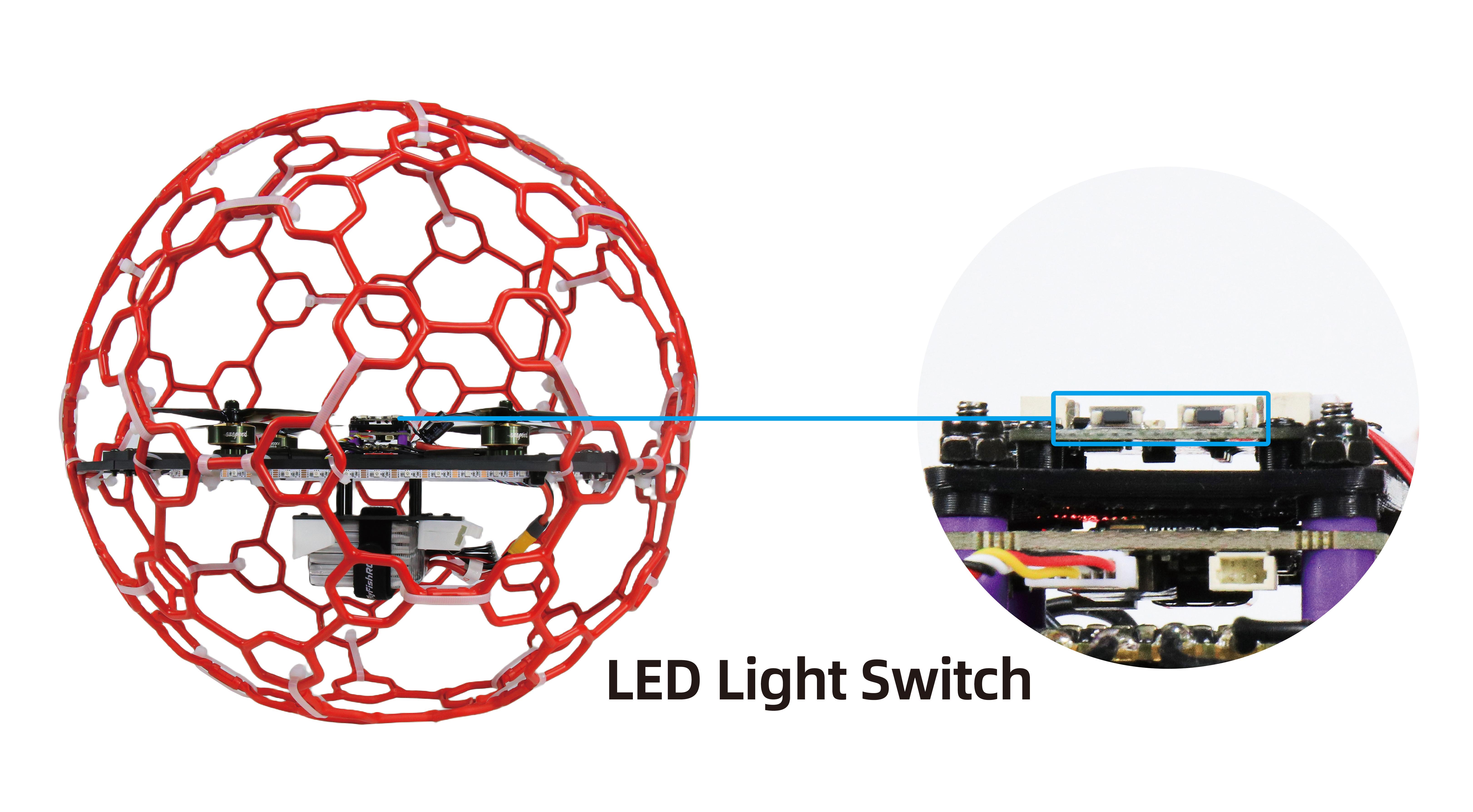
LDZ-A40 has a tail LED light and a ring light strip. They have 7 colors that can be switched, namely red, green, blue, yellow, purple, cyan and white. Short press the button on the light board to switch their light color or turn off the light.
The light board socketsof LDZ-A40 are as follows:
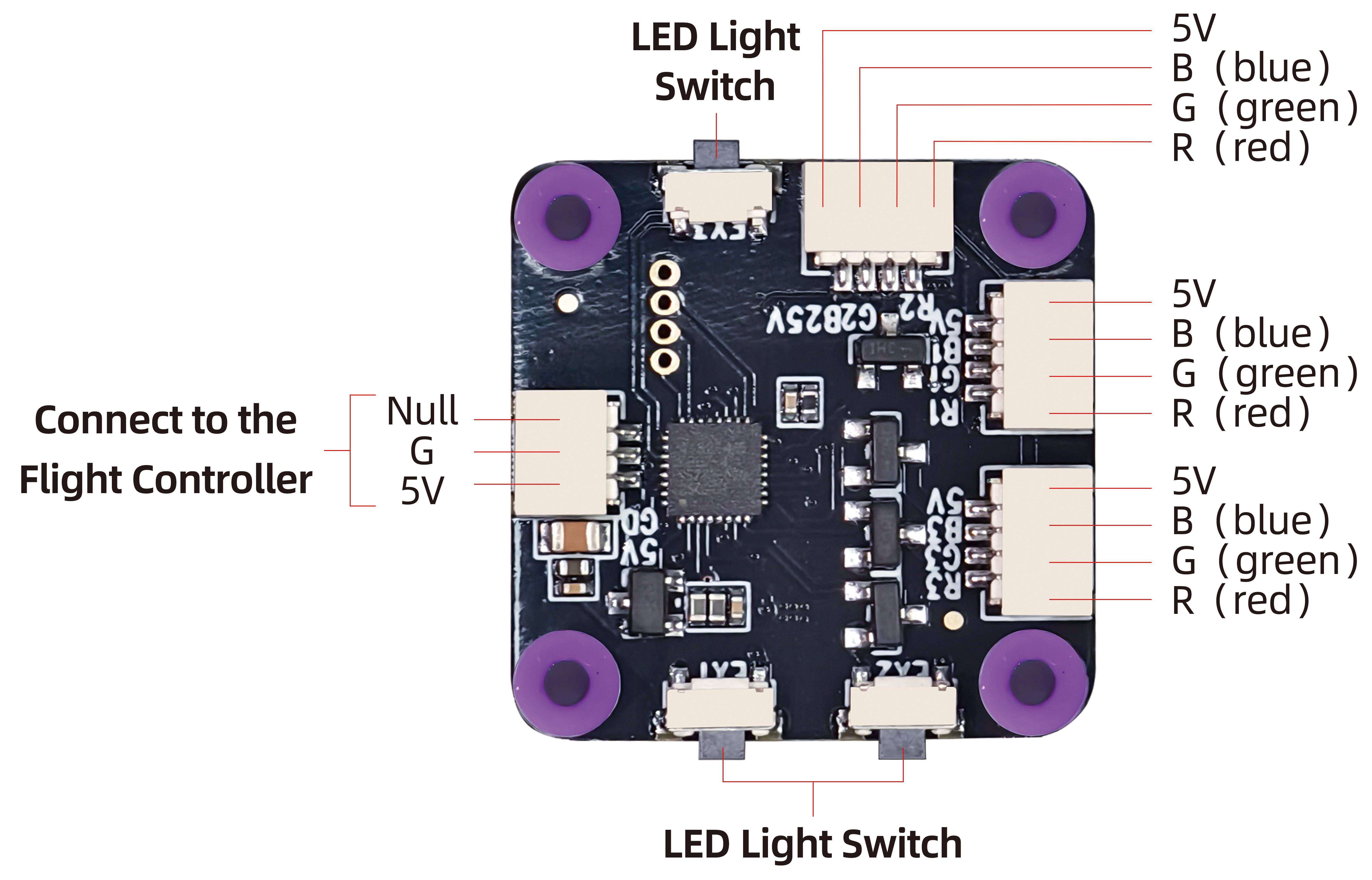
Note: There are 3 light switch buttons on the light board, 2 of which work (including the tail LED light switch button and the ring light strip switch button), and the remaining one does not work. You can press the 3 light switch buttons to confirm which two buttons work.
Low Battery Alarm
LDZ-A40RTF version comes with a RadioLink R16SM receiver. R16SM supports model battery telemetry function. During the flight, the battery voltage of the drone can be viewed on the screen of T12D transmitter. The alarm voltage is 22V by default. When the battery voltage is lower than 22V, T12D will make a beeping alarm prompt. Please land the drone in time to replace the battery. If you continue to fly, the drone will automatically land when the voltage reaches 21.5V. During the landing process, the yaw, pitch and roll can be controlled, and it can also be disarmed directly. After landing, please disconnect the power and replace the battery in time to avoid over-discharge of the battery.
Note: You want to modify the alarm voltage on T12D. For more details, please refer to the detailed manual of T12D: https://www.radiolink.com.cn/t12d_manual
Motor and Propeller Installation
To make the drone fly, motors usually rotate clockwise (CW)/counterclockwise (CCW) with the propellers.It is very important to make sure about the rotation direction as below when installing motors. Otherwise, the drone would fail to take off.
Motor and propeller installation can be skipped as LDZ-A40 is already assembled by factory default. If any of the motors is worn out and needs to be replaced, it is essential to identify the correct motor/propeller rotation. Please follow the below picture to install the motor and propeller.

Binding (R16SM)
RTF version comes with T12D transmitter and R16SM receiver (As shown below).
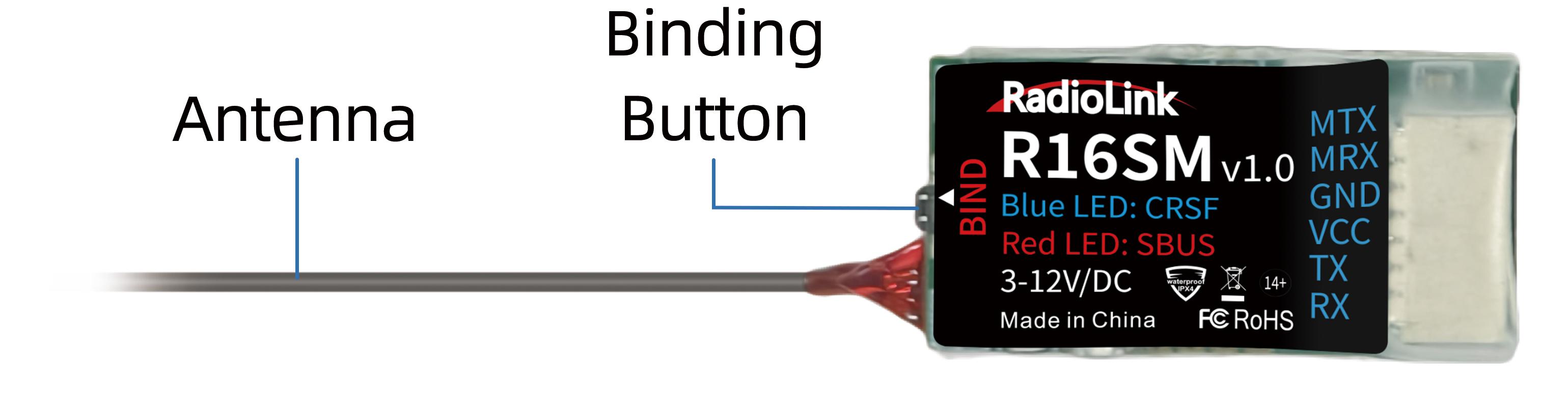
If it is the RTF version purchased, there is no need to bind because the binding between the transmitter and R16SM receiver is complete by factory default. In addition to T12D, R16SM is also compatible with T16D/T12D/T8FB/T8S. If you want to change the transmitter or receiver, binding between the transmitter and receiver needs to done first.
Here are the binding steps for RadioLink transmitter and receiver:
① Place the transmitter and receiver(installed on LDZ-A40) close to each other within 50 centimeters.
② Power on the transmitter and the receiver.
③ There is a black binding button on the side of the receiver. Press it for more than 1 second. When the LED starts flashing, meaning binding process has started.
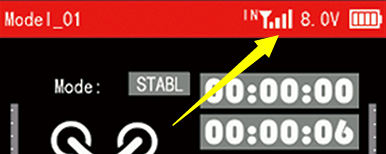
④ The binding is complete when the LED is always on. And there will be a signal tower on the screen of T12D (As shown on the right).
For transmitter and receiver from other brands, please refer to its detailed manual for binding steps.
Note: Please always make sure the LED of R16SM is blue, meaning CRSFprotocol. If the LED is red (SBUS working mode), please press the binding button once to change it to blue.
Level Calibration
Level calibration has been donebu factory default. You can flyit directly without calibration. If you dismantle the drone and then reinstall it, you need to calibrate level. The installation direction of the flight controller must be the same as the factory installation direction, otherwise it will be out of control after arming. The drone must be powered off during level calibration. Here are the steps of level calibration:
Connects the flight controller to Mission Planner via the TYPE_C data cable (The baud rate is 115200). Ensure that the receiver is bound to the transmitter successfully, and then power on the transmitter.
Open Mission Planner (The flight controller supports RadioLink and ArduPilot Mission Planner). Select the baud rate and port, and click "Connect" to connect to the flight controller.
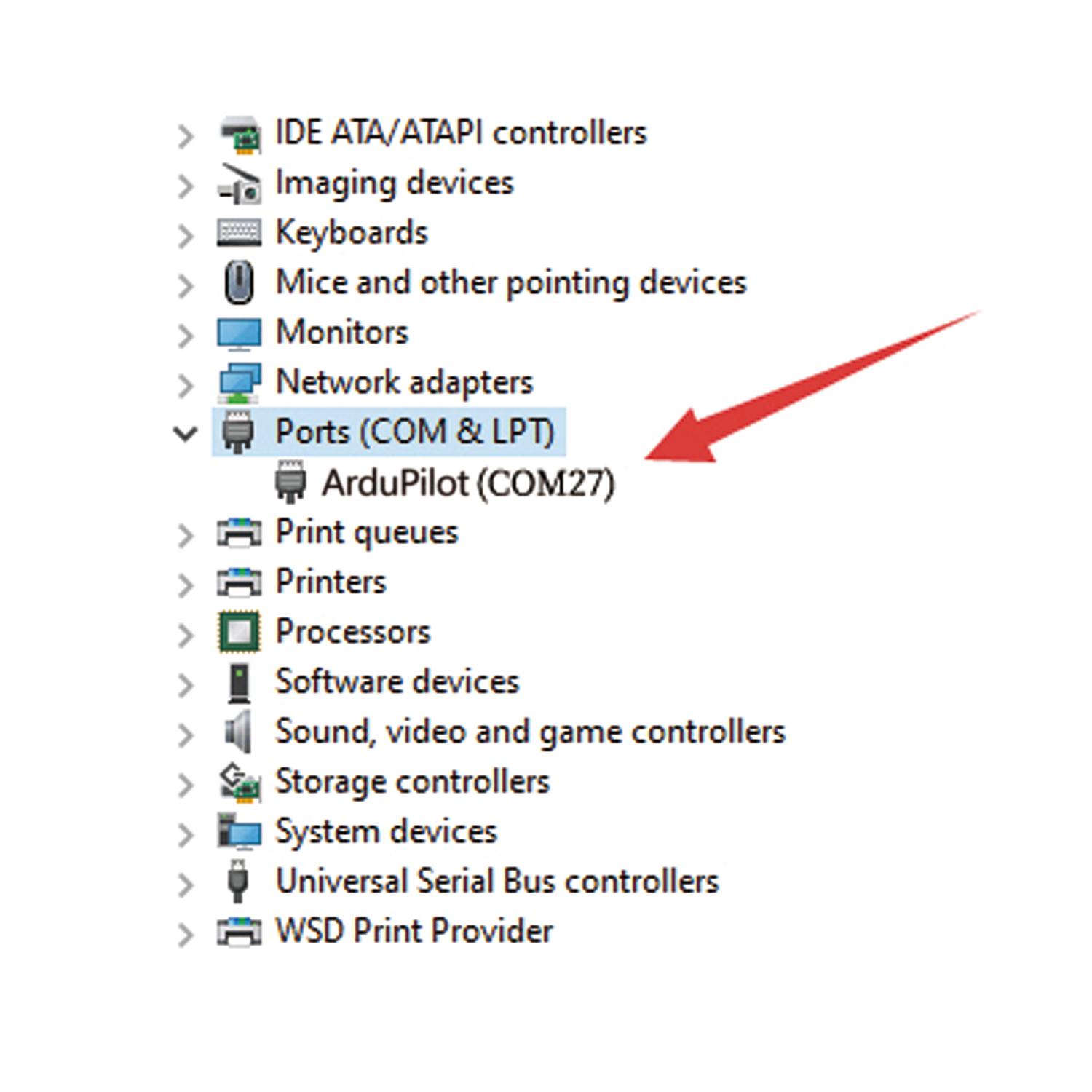
Note: Ports varies from different computers. Please select the correct port to connect. Connection may fail with several ports in use. Please remove the other connections, or enter Device Manager to view the port of the flight controller of LDZ-A40, just as below:
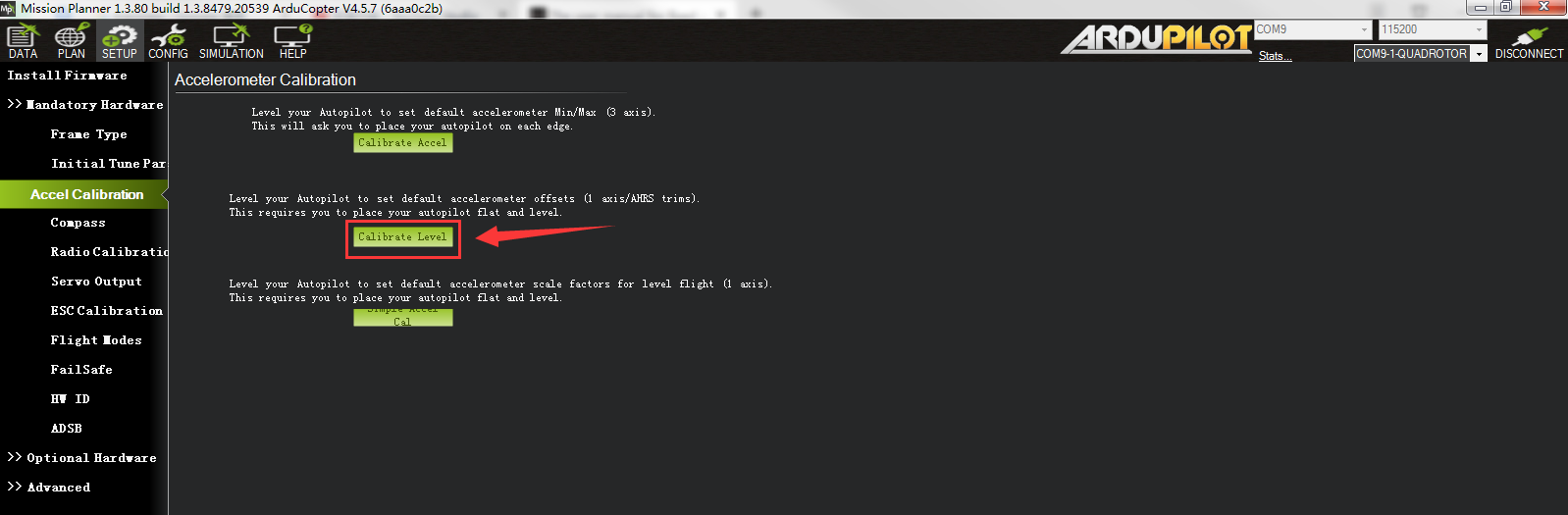
Click Setup-- Mandatory Hardware-- Accel Calibration. Put LDZ-A40 on a level surface. Then click Calibrate Level to start the calibration, and wait for about two seconds until the word "Complete" appears, indicating that the level calibration is complete.
The Receiver Connection for LDZ-A40 PNP
For LDZ-A40 PNP version, uses need to prepare the transmitter and receiver. The receiver needs to connect to the flight controller. Here is the socket introduction of the flight controller of LDZ-A40:
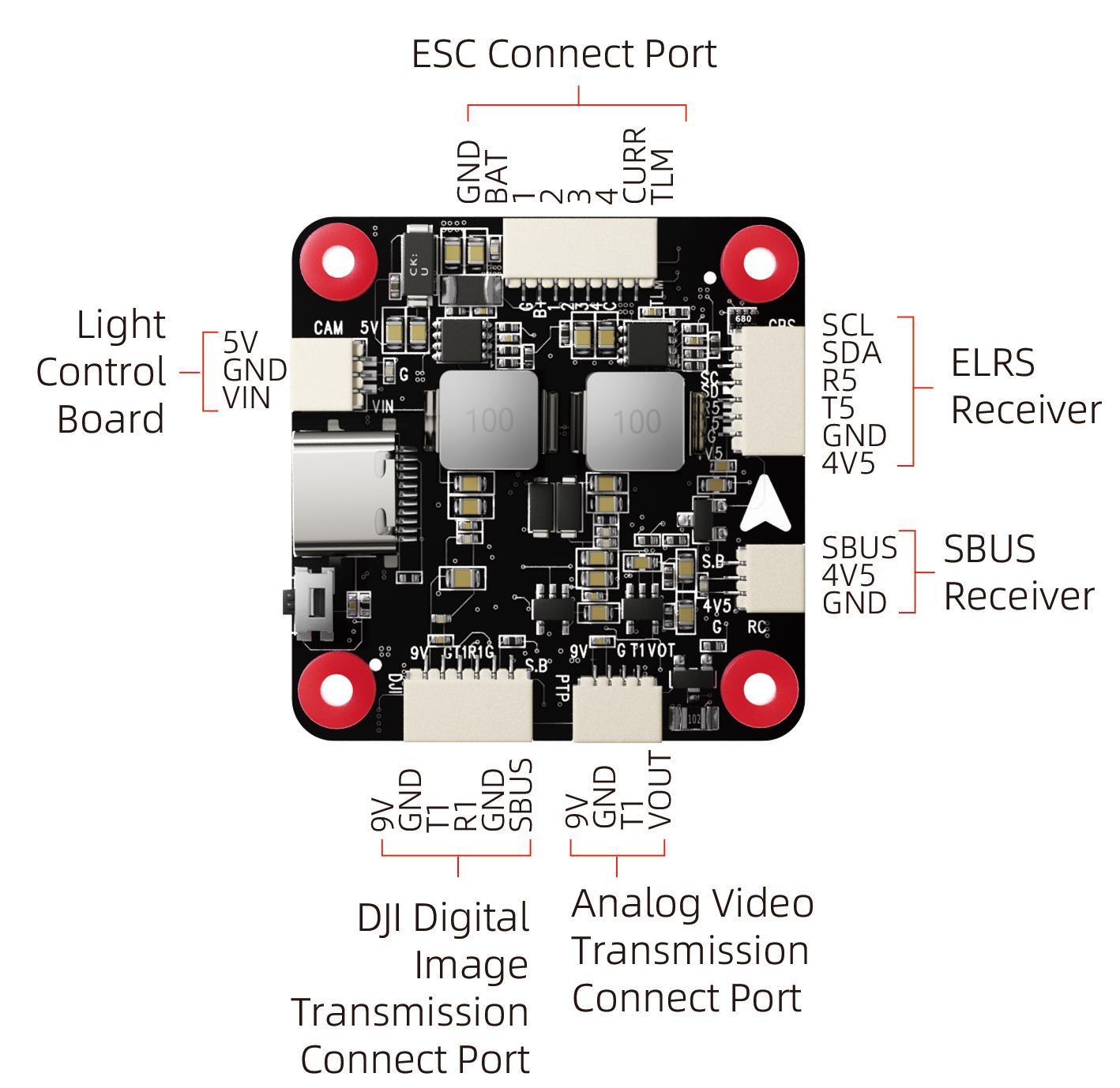
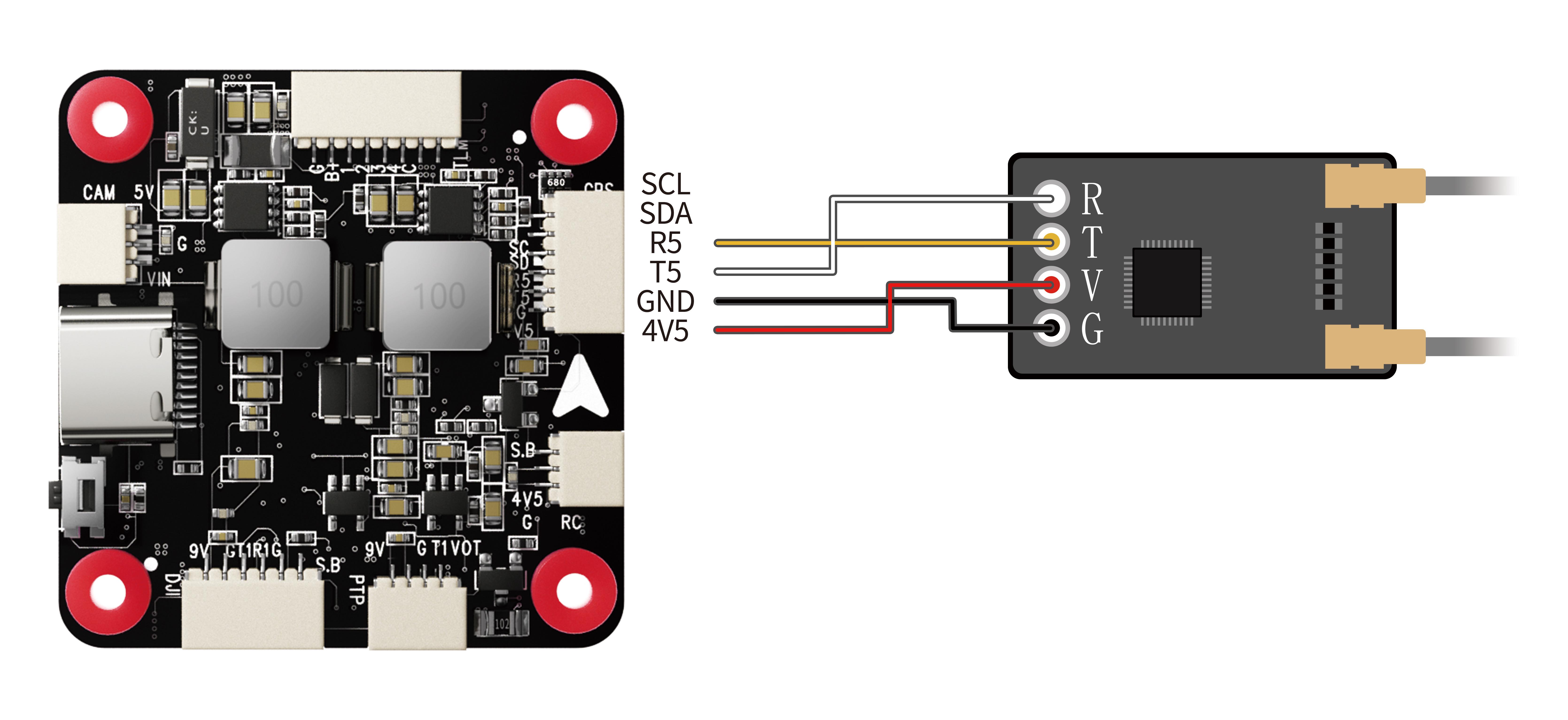
If ELRS receiver is used with LDZ-A40, please connect ELRS receiver to the ELRS Receiver connect port on the flight controller. Please refer to the below diagram to connect them:
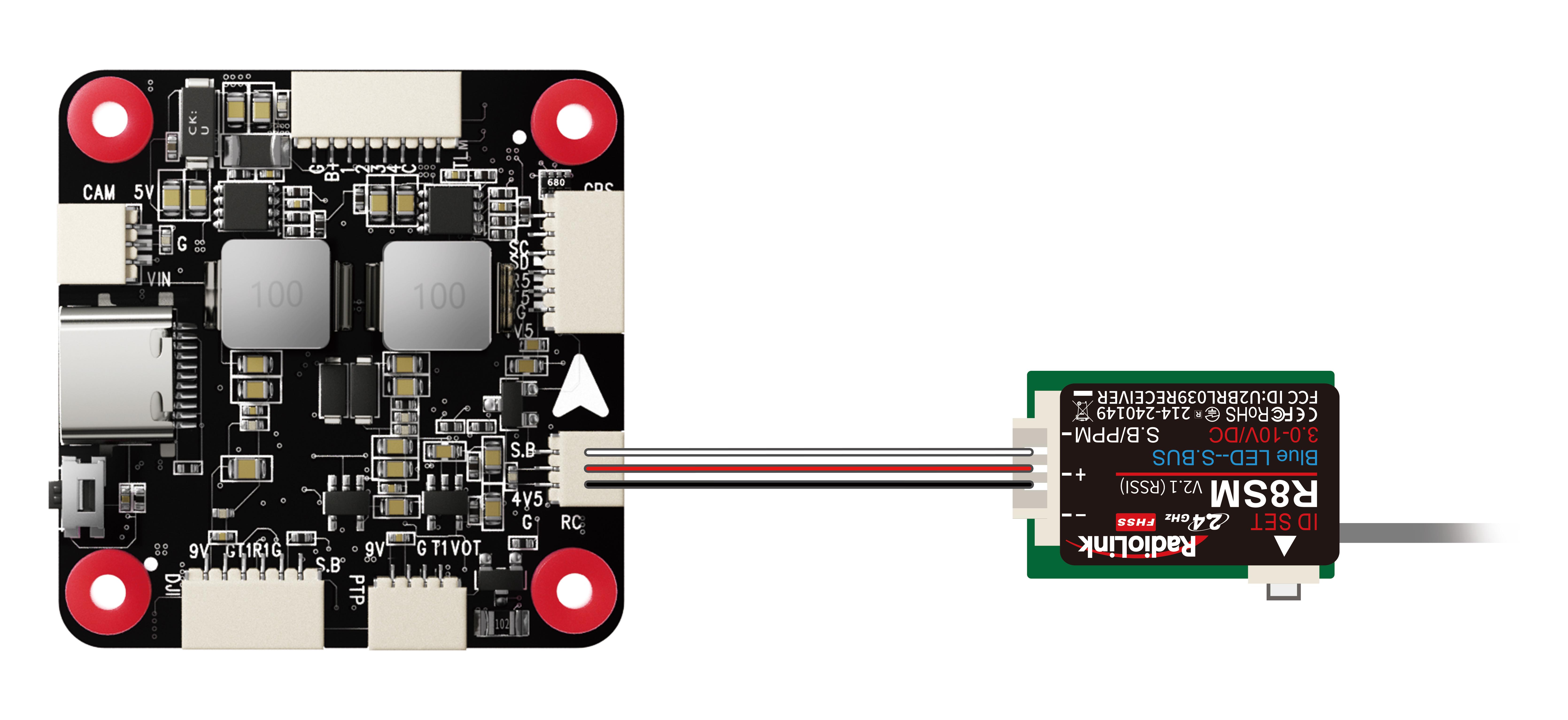
If SBUS receiver is used with LDZ-A40, please connect SBUS receiver to the SBUS receiver connect port of the flight controller (As shown below. RadioLink R8SM receiver is used as an example). Since the factory configured receiver serial port is serial port 5 (for ELRS receiver), you need to modify the settings when using the SBUS receiver, otherwise there will be conflict between the SBUS serial port and the ELRS receiver serial port, resulting in the failure of the communication between the transmitter and receiver.
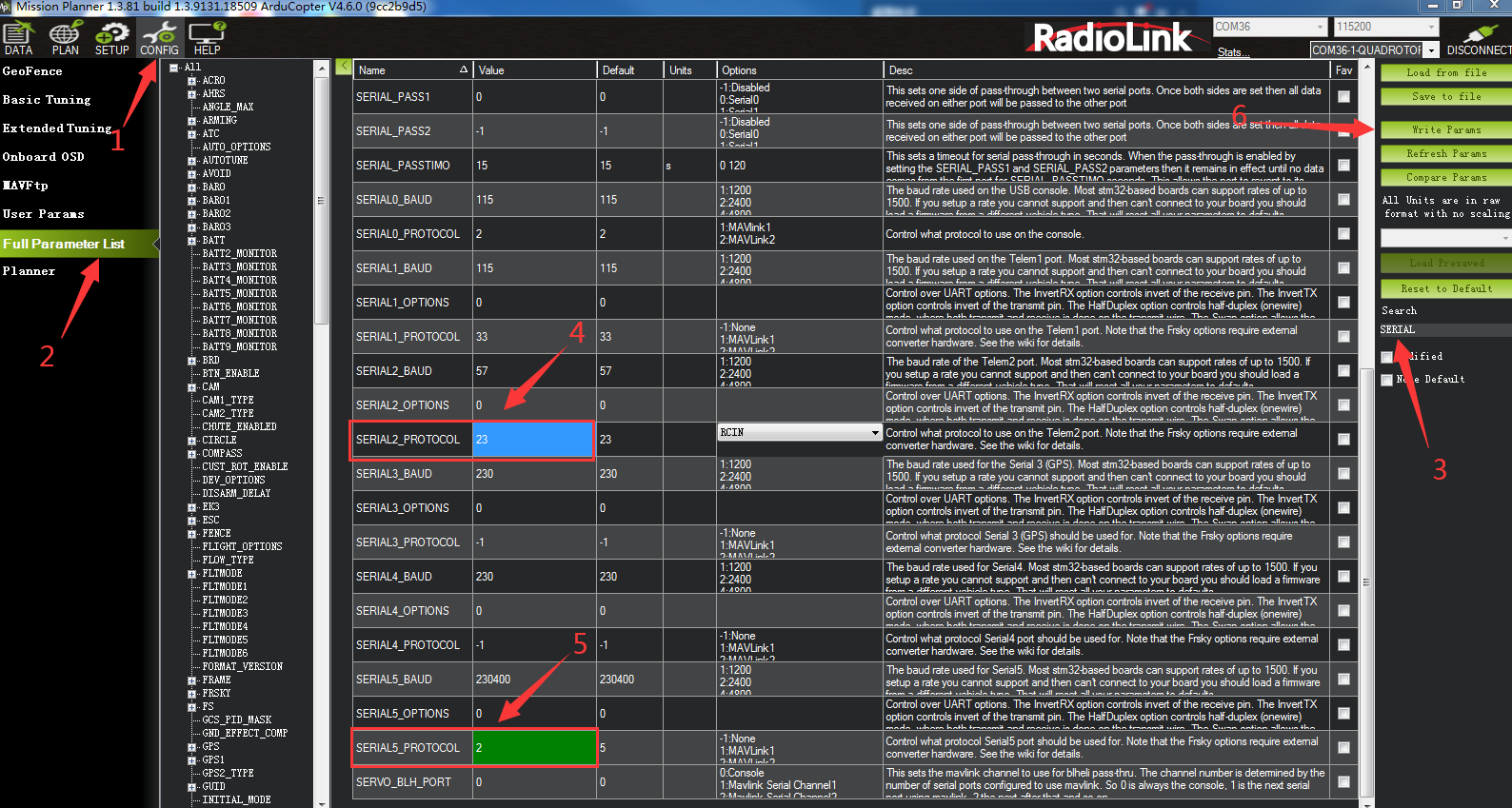
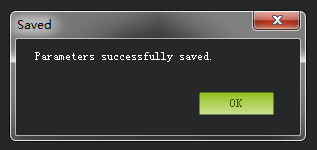
Please connect the flight controller to Mission Planner. Click CONFIG--Full Parameter List. Search for SERIAL1. Change the value of SERIAL2_PROTOCOL from 2 to 23, and the value of SERIAL5_PROTOCOL from 23 to 2. Then click Write Params. The steps are shown below:
(In addition, when using an SBUS receiver, you also need to reverse channel 2 on the transmitter. For details, please refer to the manual of your transmitter.)
Firmware Update
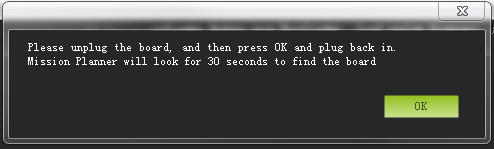
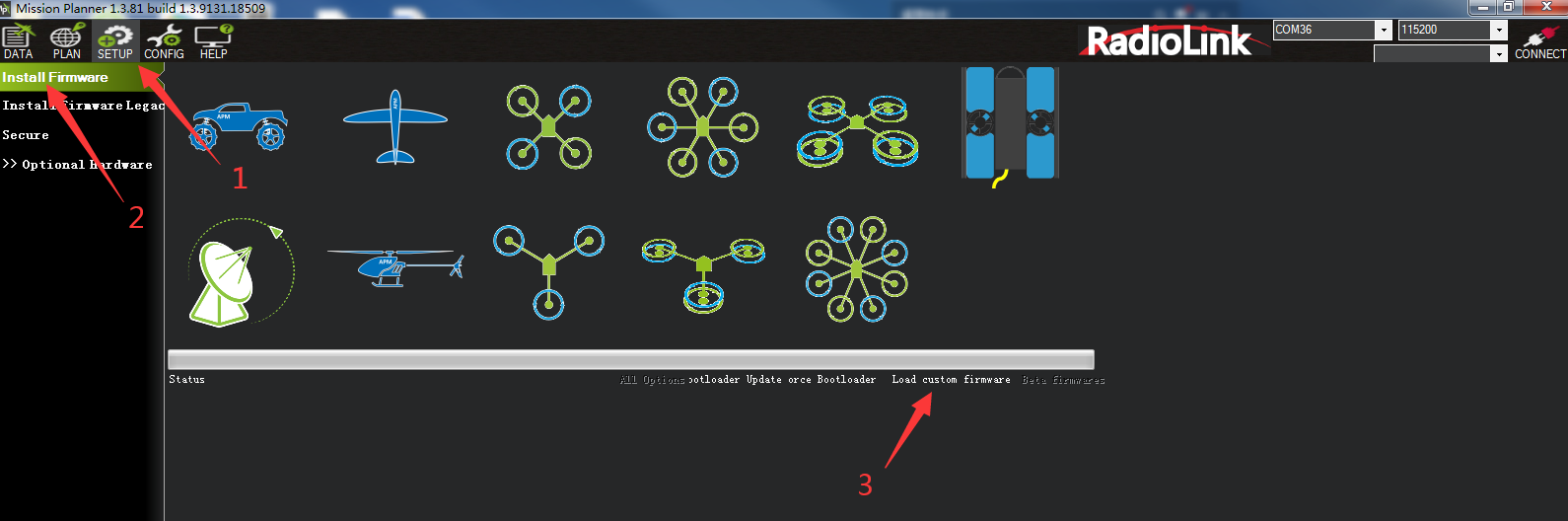
Connects the flight controller to Mission Planner via the TYPE_C data cable. Select the COM port. Click SETUP--Install Firmware--Load custom firmware. Please select the apj firmware. After there is a prompt below, unplug the flight controller, click OK, and then plug back in. Then wait for the firmware update. The steps are shown below.
Troubleshooting
Problems | Solutions |
Unable to arm the drone. | The battery voltage is low. Please charge the battery and try again. |
The aircraft rolls after taking off. | The propellers may be installed in wrong direction. Please adjust them and try again. |
There is an abnormal sound after the aircraft is armed. | Arm the drone and turn the propeller by hand to check whether there are any objects or parts interfering with the propeller. Remove the objects. |
The aircraft shakes after it is armed. | Check whether the propeller is intact. If not, please replace the propeller. |
The aircraft sways after takeoff. | Connect the flight controller to Mission Planner and operate level calibration. |
After taking off, the aircraft deflects in one direction. | Turn the trim button to set the trim value to 0. For more details, please refer to the manual of the transmitter. |
Charger
LDZ-A40is packed with HOTA T6 smart charger to charge the battery.
HOTA T6 Smart Charger
Specifications
InputVoltage | DC 10~30V /PD3.0/QC20V | ChargeCurrent | DC15A /PD5A |
ChargePower | 0.1~15A@300W | PowerSupply | 0.1-15A@5-29V |
PD90W | Discharge Current | 600mA | |
DischargePower | InternalDischarge:30W(Balanceport10W) | Temperature | -20~60°C |
External Discharge:700W | OperatingTemperature | 0~40°C | |
BatteryType | Lead Acid(Pb):1~12S(2~24V)Eneloop:1~14S | ScreenSize | 260000colors |
Dimensions | 70.5mmx49.5mmx30.5mm | ||
NetWeight | 93g | ||
ProtectionFunction | Temperature protection, time protection, capacity protection, input reverseprotection, outputprotection, shortcircuitprotection, outputovercurrentprotection, output overvoltageprotection, overchargeprotection | ||
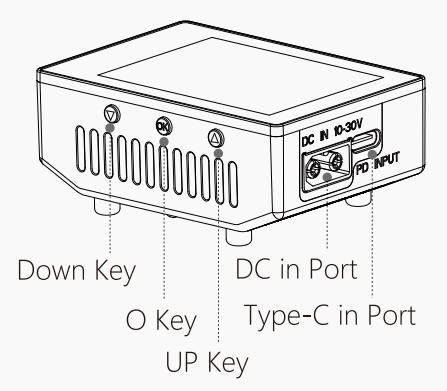
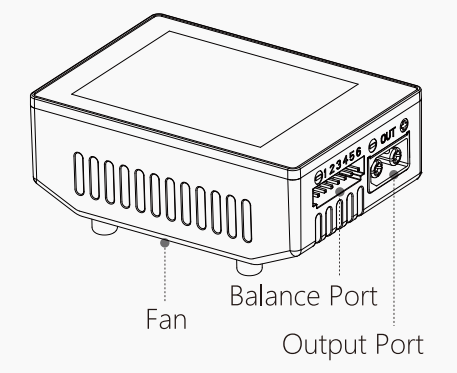
Introduction
The Connection between the Charger and the Battery
Warnings and Safety Notes
Do not use the charger in an unattended manner, in case of any functional abnormity, please stop using it and refer to the manual.
Keep the charger away from dust, humidity, rain and high temperature, as well as avoid direct exposure to sun and intense vibration.
Input voltage of the charger is 6.5-30V DC. When connecting the power supply, make sure that the input voltage match the operating voltage range of the charger.
Please place the charger on a heat-resisting, non-flammable and insulating surface. Do not use it by placing it on the car's seats, carpet or other similar place. Keep inflammable and explosive objects away from operation areas of the charger.
Make sure the heat emission hole at the side of the charger is uncovered while in use, and ensure the cooling fan smoothly extracts heat.
Please fully understand the charging and discharging characteristics as well as the battery's specifications. Additionally, set up proper charging parameters in the charger. Incorrect setting of parameters can cause damage to the charger and battery and/or result to disastrous consequences such as fire or explosion.
When charging or discharging is completed, please press the O key to terminate current task, and remove the battery when charger shows the standby screen.
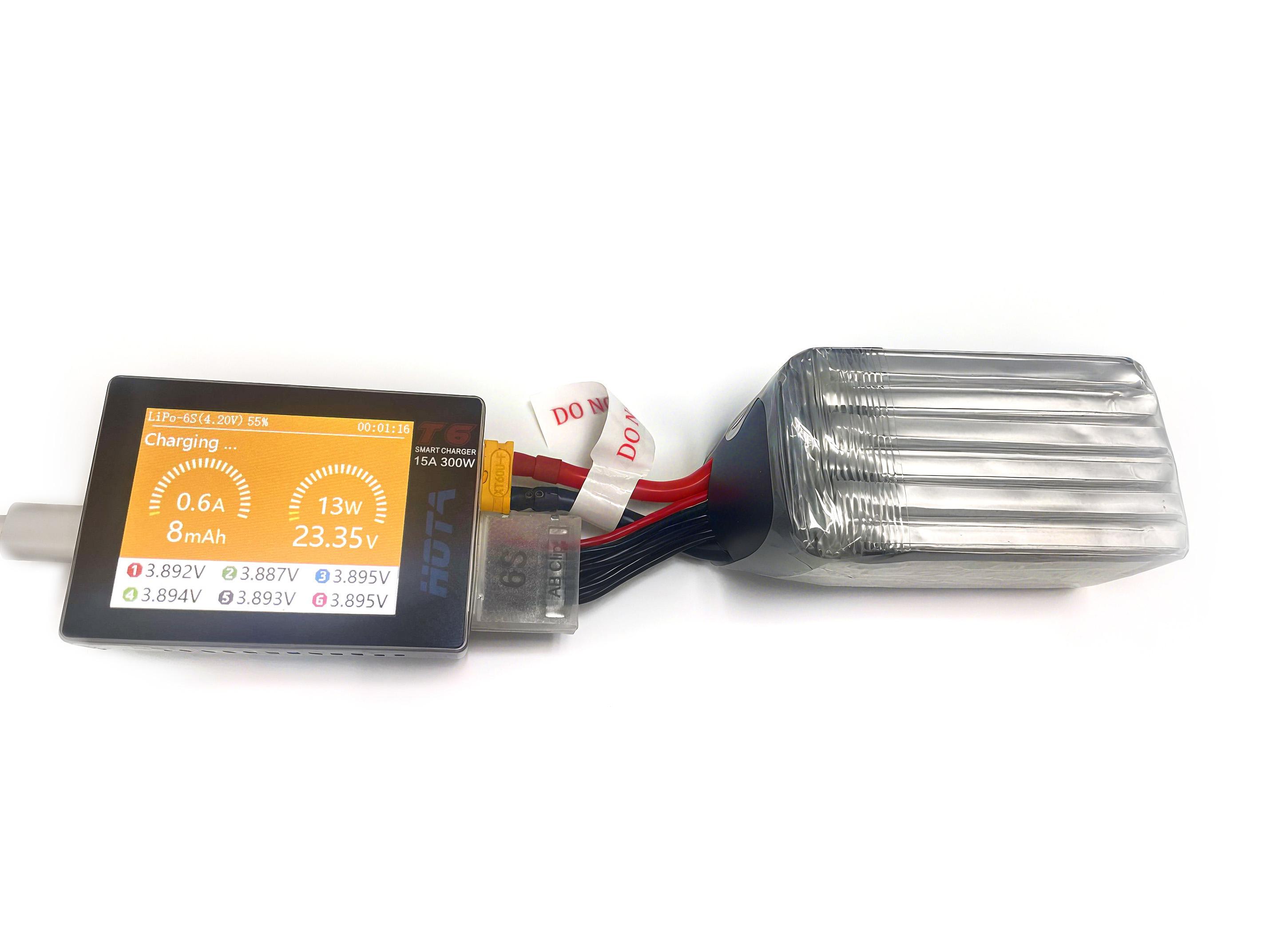
Recommended Connected Way
Connect the power supply, wait for self-checking to be completed ;
Connect the battery to the charger under standby interface ;
Set up task parameters applicable to your battery through the display and touch key ;
Enjoy.
Operative Skills
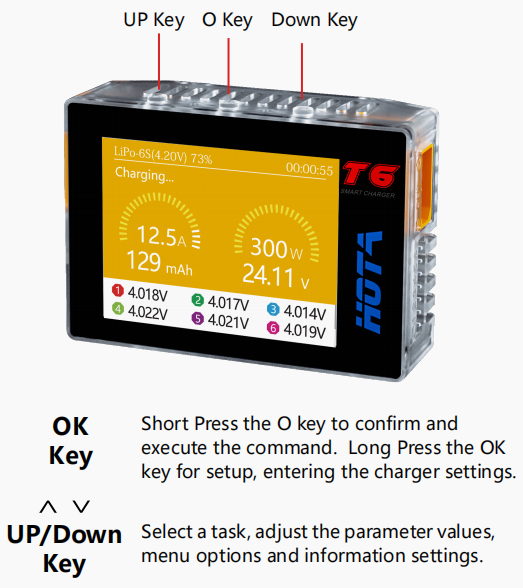
Connect power supply to the charger's PD or DC port, wait for the system to complete the self-checking. In standby interface, connect the battery to the charger. Short Press OK key to pop up the“Task Settings”menu, press the Up/Down key to select the operation task and adjust the task parameters, short press OK key to start the task.
When the task is being executed, you can short press the OK key to pop up the“Adjust Task”menu to adjust the task's current or stop the task. long Press the OK key to quickly end the current task .
In standby interface, long press the OK key to enter the“Charger Settings”menu.
Charger Settings
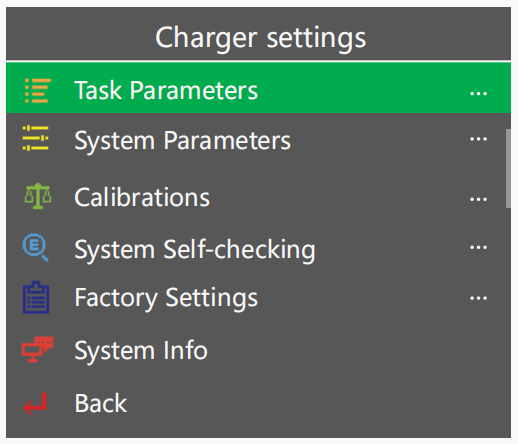
In the standby interface, long press the O key to pop up the“Charger Settings”menu. The menu items are as follows:
Task Parameters | Adjust Safety Timer, Max Capacity, End Current and other parameters |
System Parameters | Adjust Language, Regen. Discharge, input power, Volume and other parameters |
Calibrations | For data calibration |
System Self-checking | Start self-checking of the charger |
Factory Settings | Restore all parameters to factory settings(User calibration data cleanup) |
System Info | Display system information, serial number |
Back | Exit“Charger Settings” |
For more details of the detailed operating instruction of HOTA T6 smart charger, please download it from the link: https://www.radiolink.com.cn/manuals_download
CM210 charger
Specifications:
Size: 40.5*21*15 mmWeight: 9g
Input Voltage: 5VSupporting Battery: 2S LiPo battery
Charging Precision: 0.02VCharging Voltage: Max. 4.2V for each battery cell
Charging Current: 1.5ABalance Current: 0.8A
Max. Output Power: 20WPower Supply Input Port: USB Type-C Input
Charging Port Interface: 3P XH2.54 port
Working Modes: Charging Mode, Balance Mode, Repair Mode (Self-adaptive, with no need to set it)
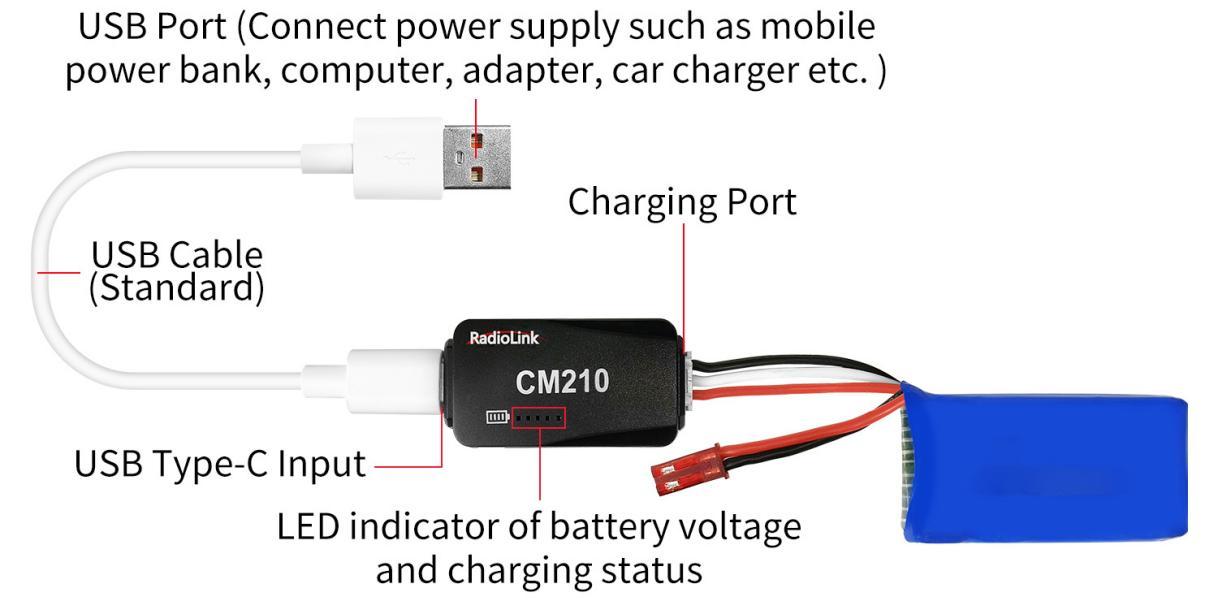
The connection of CM210, battery, cable is as shown below:
Instructions for using CM210 charger:
Insert one end of the standard USB cable into the Type-C input port of the CM210 charger (as shown in the picture above), and then connect the other end of the USB cable to power supply equipment such as power bank, computer, mobile phone adapter, etc.. After the right connection, the red LED indicator will be always on.
Insert the balance port of the standard 2S lithium battery of D460 into the charging port of CM210 (as shown in the picture above). Then the green LED indicator starts flashing, which means it starts to charge the battery. (Note: The green LED indicator flashes during the charging to indicate normal charging; If the red LED indicator flashes during the chargingto indicate abnormal charging. Please reconnect battery and cable to troubleshoot the abnormality.)
When all four LED indicators turn solid green, the battery is fully charged, and the charger will automatically stop charging.
Remove the battery and then disconnect the power supply.
CM210 LED indicator status:
LED color | Status | Meaning |
Red | Flash | The charger detects abnormality. |
Always on | No battery is connected. | |
Green | All four green LEDs flash once. | The charger is powered on. |
The first green LED flashes, and the other LEDs are off. | The battery voltage is lower than 7.4V. | |
The first green LED is always on, and the second green LED is flashing. The other LEDs are off. | The battery voltage is lower than 7.8V. | |
The front two green LEDs are always on, and the third green LED is flashing. The other LEDs are off. | The battery voltage is lower than 8.2V. | |
The front three green LEDs are always on, and the fourth green LED is flashing. The other LED is off. | The battery voltage is lower than 8.4V. | |
All four green LEDs are always on. | The battery is fully charged. |
Troubleshooting for CM210 charger:
1. After the charger is powered on, the red light flashes just after inserting the battery or within one minute.
The current detection resistor is burned out, and the MCU detects that the current is too large.
The switch tube is damaged, so it is unable to switch normally. There is no current output or the output current of the power supply is too small.
2. After the charger is powered on, insert the battery and charging works normally for a period of time, and then the red light flashes.
The output current of the power supply is too small, or the battery is damaged.
Solution: Replace the power supply or battery to charge it again, if the abnormal phenomenon still occurs, the charger is damaged.